Requirements
Please ensure that you have a HubSpot account to use this theme. If not, you can visit this link to create a HubSpot account.
Create a HubSpot accountInstallation
You can either install your theme from HubSpot Asset Marketplace or a .zip file.
From HubSpot Asset Marketplace
If you're installing the theme from HubSpot Asset Marketplace, just click the Install for free button on theme page and then follow the instructions.
From .zip file
If you have a .zip file of your HubSpot CMS theme, please follow the steps below to install it onto your account:
- Login to your HubSpot account.
- On the top right, click the Settings icon (looks like a gear).
- Click Tools > Content > Themes from the left sidebar menu.
- You'll see the Upload Theme button at the top right corner of the screen. Click it and then choose the zip file you've got.
- Login to your HubSpot account.
If you completed the steps successfully, you should see the Slider theme and its templates when you're creating a new page.
To learn more about theme installation, please visit HubSpot Reference Docs.
Visit HubSpot Reference Docs.png?width=1365&height=614&name=Screenshot_1%20(1).png)
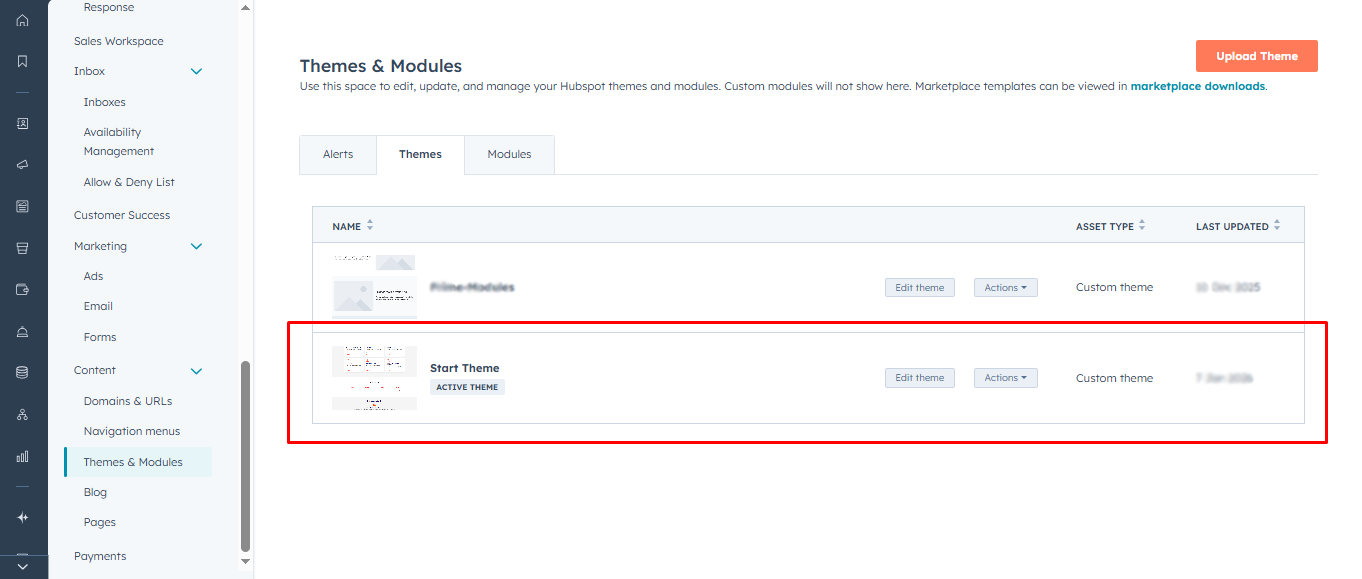
Up and Running Start Theme
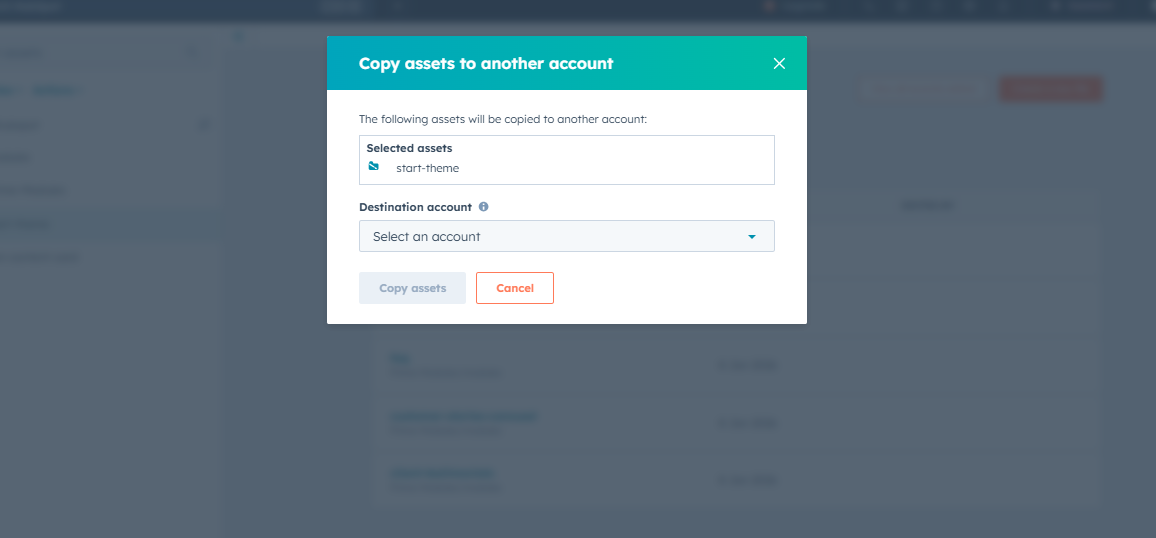
Copy to different account
Select your Theme Folder then click right click then show some option
Select option = Copy to different account
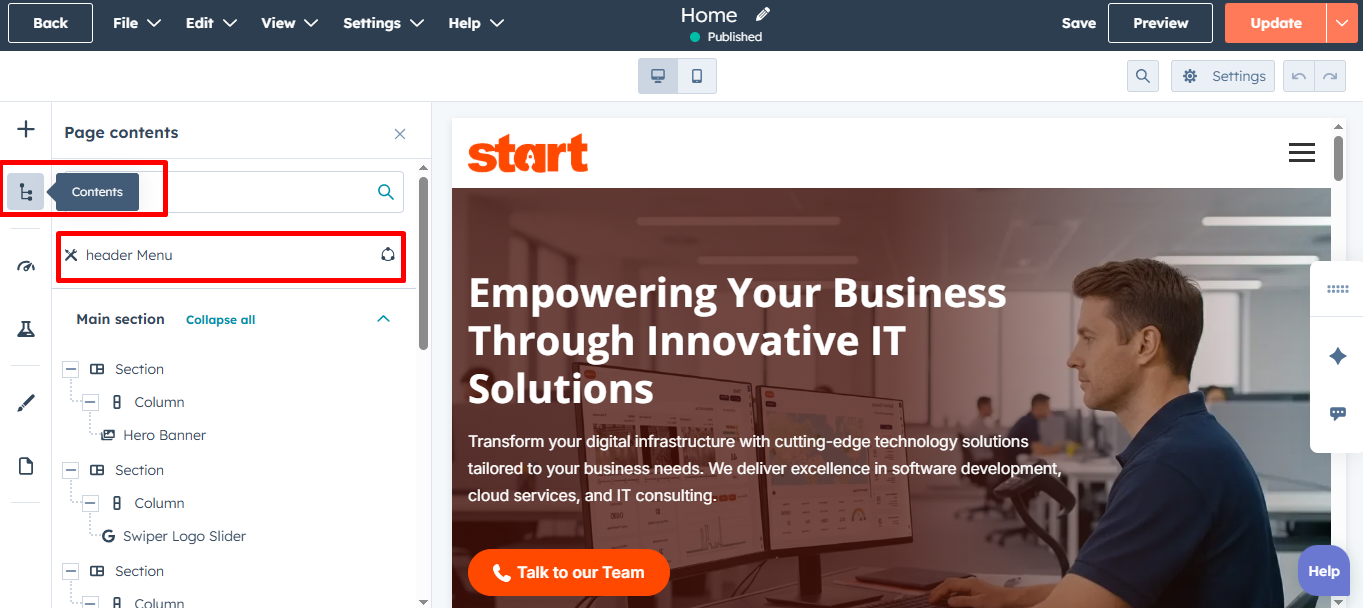
Global Header
To edit your header, you'll first need to create a page with a theme template. When a page is created then edit you page in the left side click Tab Contents. Then click Page header.
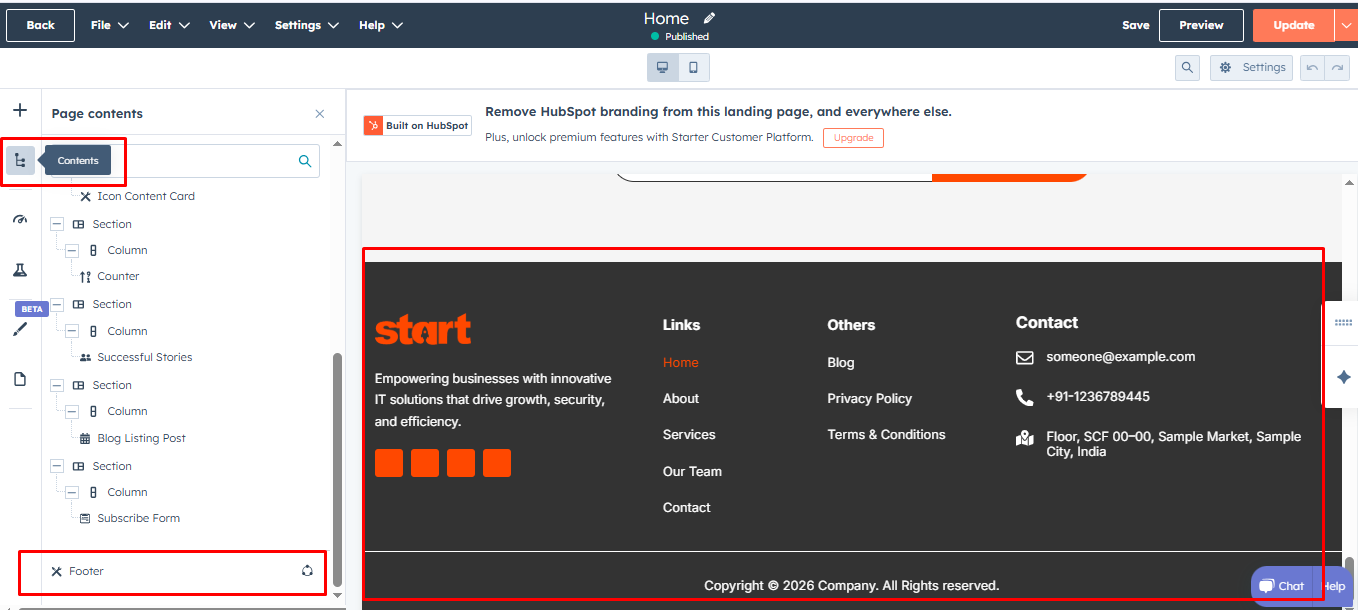
Global Footer
To edit your Footer, you'll first need to create a page with a theme template. When a page is created then edit you page in the left side click Tab Contents. Then click Page footer.
System & Default Templates
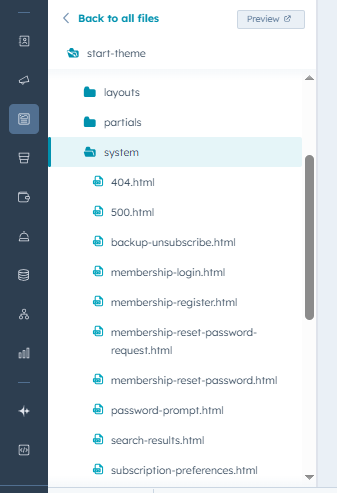
Start includes 9 ready-to-use page templates, along with HubSpot’s built-in system templates to ensure full functionality across your website.
The following default HubSpot system templates are included in the theme:
- 404 Error Page (404.html)
- 500 Error Page (500.html)
- Backup Unsubscribe Page (backup-unsubscribe.html)
- Membership Login Page (membership-login.html)
- Membership Registration Page (membership-register.html)
- Membership Reset Password Request Page (membership-reset-password-request.html)
- Membership Reset Password Page (membership-reset-password.html)
- Password Protected Page (password-prompt.html)
- Search Results Page (search-results.html)
- Subscription Preferences Page (subscription-preferences.html)
- Subscription Confirmation Page (subscriptions-confirmation.html)
Home
This template is built for the homepage of your website and includes the following sections and modules, listed in their default order:
- Hero Banner
- Swiper Logo Slider
- Image Absolute Content
- Icon Content Card
- Counter
- Successful Stories
- Blog Listing Post
- Subscribe Form
File location: /templates/home.html
About
This template is designed for presenting information about you and your team and contains the following sections and modules in the default order:
- Hero Banner
- Image With Content List
- Icon Content Card
- FAQ
- Subscribe Form
File location: /templates/about.html
Our Team
The Our Team template is professionally crafted to showcase your company's human capital, expertise, and leadership. It provides a structured layout to introduce team members, answer common inquiries, and capture leads through integrated conversion points.
- Hero Banner
- Team Cards
- FAQ
- Subscribe Form
File location: /templates/our-team.html
Services
Use this template to showcase your services and solutions in a clear and structured layout. It is designed to highlight your offerings, explain your process, build trust through client feedback, and encourage user engagement.
- Hero Banner
- Image With Content List
- Icon Content Card
- Horizontal Tabbing
- Successful Stories
- Counter
- Subscribe Form
File location: /templates/services.html
Contact
You can use this template to create your contact page. It contains the following sections in order:
- Hero Banner
- Contact Form
- Subscribe Form
File location: /templates/contact.html
Blog Index
This is the template for your blog. It contains the following module:
- Blog Banner
- Blog Listing Post
- Pagination Blog
File location: /templates/blog-index.html
Blog Post
HubSpot does not support drag-and-drop functionality for blog post templates. Therefore, all sections and modules are built directly into the template and cannot be accessed or edited through the page editor.
File location: /templates/blog-post.html
Blank
Use this blank template to create a simple and fully custom page. It provides an empty layout that allows you to add only the sections and modules you need.
File location: /templates/blank.html
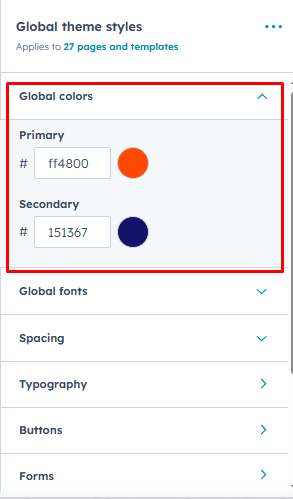
Global Colors
- Primary
- Secondary
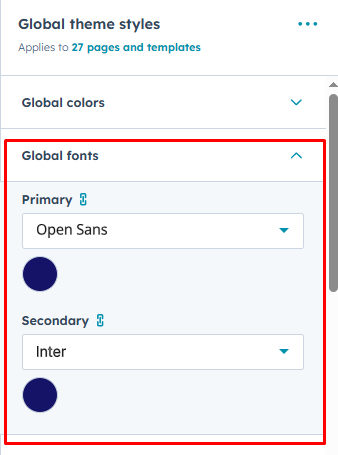
Global Fonts
- Primary
- Secondary
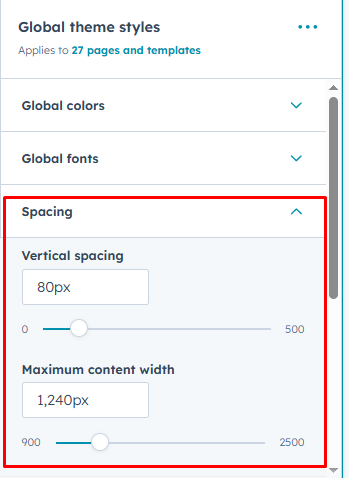
Spacing (Container Width)
- Vertical spacing
- Maximum content width
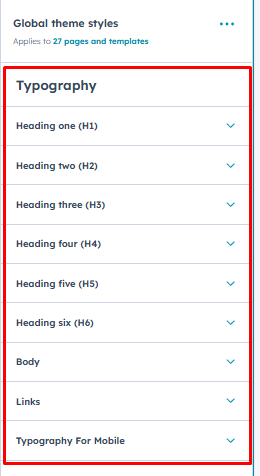
Typography
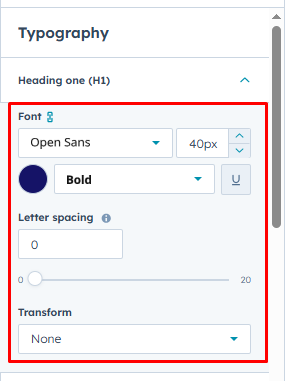
Headings (H1 > H6)
- Font
- Letter Spacing
- Transform
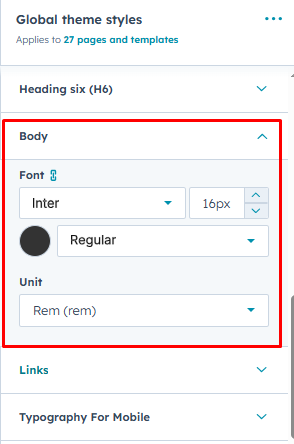
Body
- Font
- Unit Choice Rem / Px
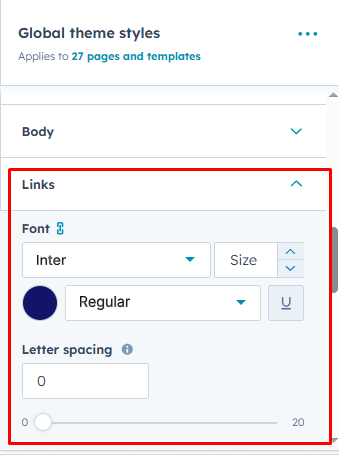
Links
- Font
- Letter Spacing
Typography For Mobile
- Headings (H1 > H6)
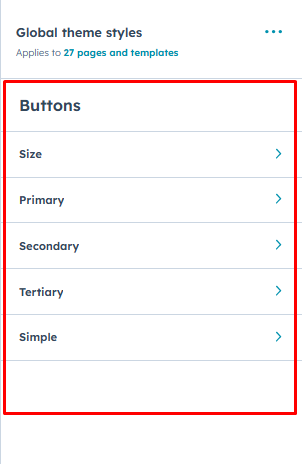
Buttons
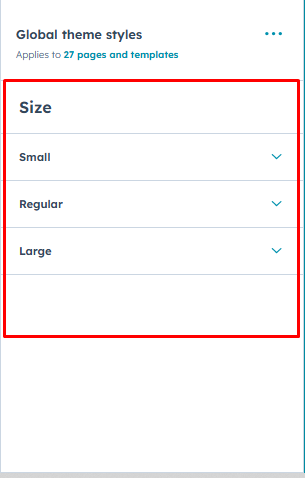
Small
- Font size
- Vertical Spacing
- Horizontal Spacing
Regular
- Font size
- Vertical Spacing
- Horizontal Spacing
Large
- Font size
- Vertical Spacing
- Horizontal Spacing
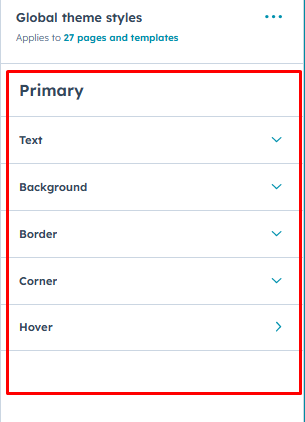
Primary
-
Text
- font
- Letter spacing
- Transform
-
Background
- Color
-
Border
- Border Style, Width, Color
-
Corner
- Radius
-
Hover
- Text
- Color
-
Background
- Color
-
Border
- Border Style, Width, Color
- Text
Secondary
-
Text
- font
- Letter spacing
- Transform
-
Background
- Color
-
Border
- Border Style, Width, Color
-
Corner
- Radius
-
Hover
- Text
- Color
-
Background
- Color
-
Border
- Border Style, Width, Color
- Text
Tertiary
-
Text
- font
- Letter spacing
- Transform
-
Background
- Color
-
Border
- Style
- Width
- Color
-
Corner
- Radius
-
Hover
- Text
- Color
-
Background
- Color
-
Border
- Border Style, Width, Color
- Text
Simple
- Font
- Letter spacing
- Text transform
-
Underline
- Add Underline(Checkbox)
- Width
- Add
-
Hover
- Font
-
Underline
- Add Underline(Checkbox)
- Width
- Add
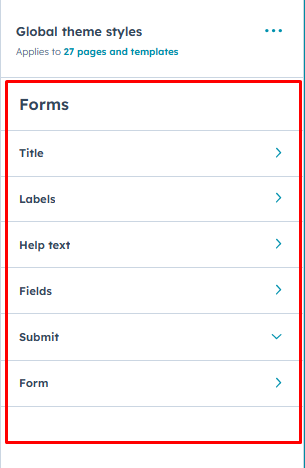
Forms
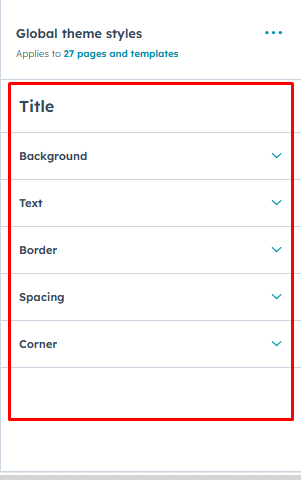
Title
-
Background
- Color
-
Text
- Font
- Letter spacing
- Transform
-
Border
- Style
- Width
- Color
-
Spacing
- Padding
-
Corner
- Top Left Radius
- Top Right Radius
- Bottom Left Radius
- Bottom Right Radius
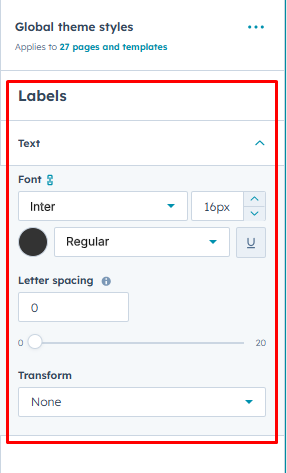
Labels
-
Text
- Font
- Letter spacing
- Transform
Help text
-
Text
- Font
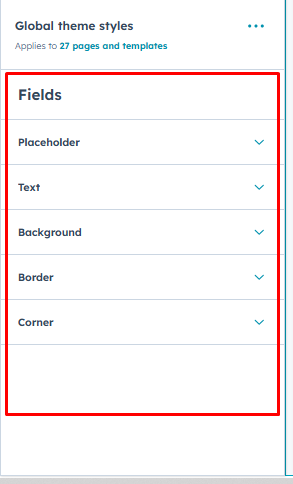
Fields
-
Placeholder
- Color
-
Text
- Font
-
Background
- Color
-
Border
- Border Style , Width, Color
Submit
- Button style Choice (Primary, Secondary, Tertiary, Simple)
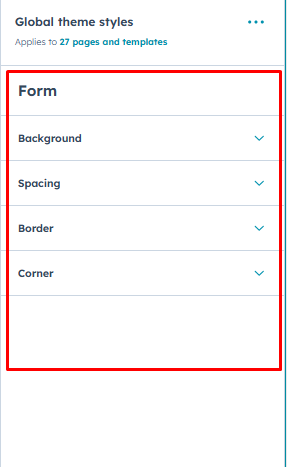
Form
-
Background
- Color
-
Spacing
- Padding
-
Border
- Border Style, Width, Color
-
Corner
- Top Left Radius
- Top Right Radius
- Bottom Left Radius
- Bottom Right Radius
Tables
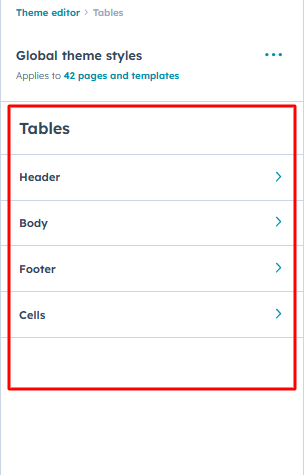
Header
-
Text
- font
-
Background
- Color
Body
-
Text
- font
-
Background
- Color
Footer
-
Text
- font
-
Background
- Color
Cells
-
Spacing
- Padding
-
Border
- Border Style, Width, Color
Header
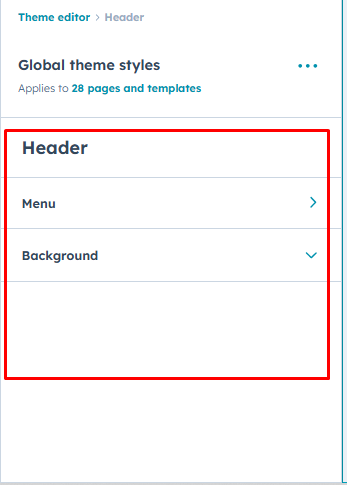
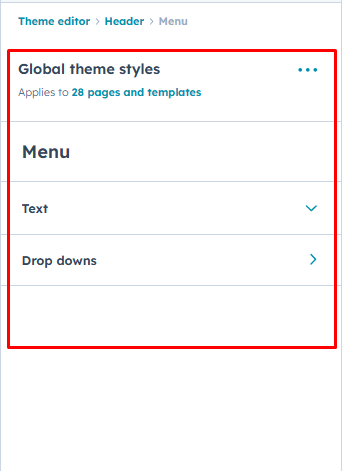
Menu
-
Text
- Font
- Hover Color
- Letter spacing
- Text transform
-
Background
- Color
-
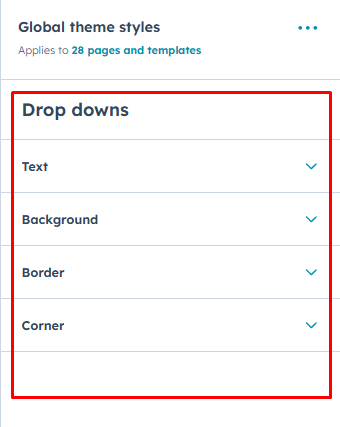
Drop downs
-
Text
- Font
- Hover Color
- Letter spacing
- Text transform
-
Background
- Color
-
Border
- Border Style, Width, Color
-
Corner
- Radius
-
Footer
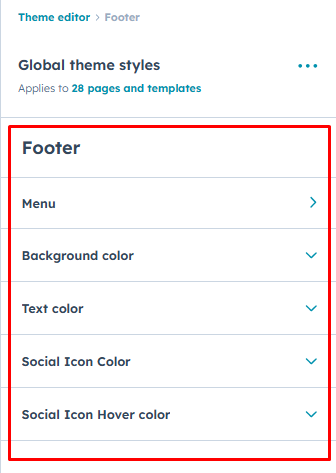
Menu
-
Menu Title
- Font
-
Footer Menu
-
Text
- Font
- Letter Spacing
- Text Transform
-
Hover
- Font Color
-
Active
- Font Color
Background color
- Color
Text color
- Color
Social Icon Color
- Background Color
- Icon Col
Social Icon Hover color
- Background Color
- Icon Color
-
Modules
Start Theme comes with 30 pre-built, ready-to-use modules designed for flexibility, speed, and consistency.
Hero Banner
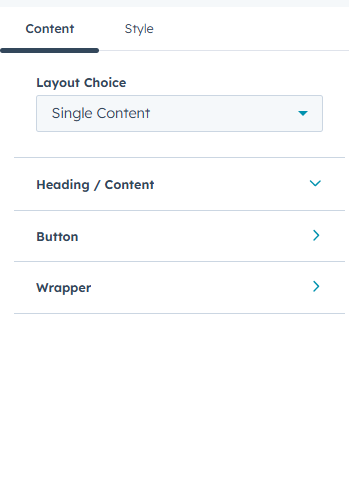
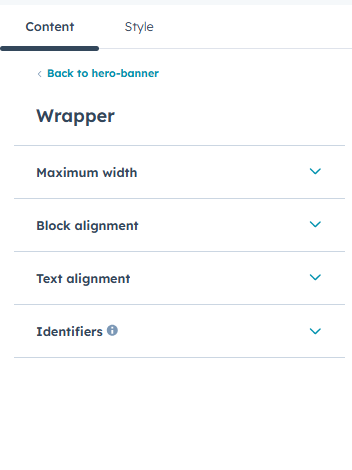
The Hero Banner module allows you to create impactful banner sections that can be used anywhere on your pages
Features
- Custom Class and ID fields for advanced styling and targeting
- Rich text fields for adding a main heading and Content description
- Multiple layout options, including single-column content and two-column content with image
- Adjustable maximum content width for large, medium, and small screen sizes
- Block alignment settings for large, medium, and small screen sizes
- Text alignment controls for large, medium, and small screen sizes
- Two-column layout with adjustable left and right column widths, flexible row direction control, and responsive column gap options for desktopand mobile
- Two-column layout alignment options, including start, center, and end
- Button options available within a repeater
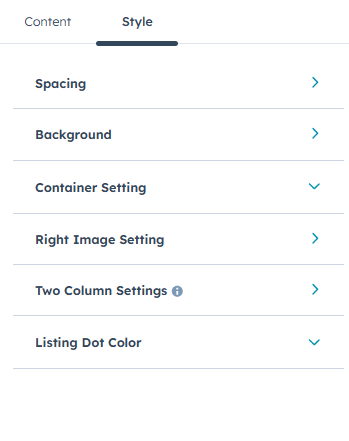
Styling Options:
- Section spacing controls for top, bottom, left, and right padding on desktop, tablet, and mobile
- Background customization options, including background color and background image
- Container setting choice with options for page-center, full width, or custom container width
-
Right image settings including:
- Max-width enable/disable toggle
- Image max-width and image alignment options
- Box shadow controls with show/hide toggle, including X offset, Y offset, blur radius, spread radius, and shadow color
- Image corner radius option for rounded edges
-
Two-column layout controls, including:
- Left and right column width settings
- Spacing between columns for desktop and tablet
- Flex direction row reverse toggles for desktop and mobile
- Vertical alignment choice (start, center, end)
- Listing dot color option for customizing list indicators



Swiper Logo Slider
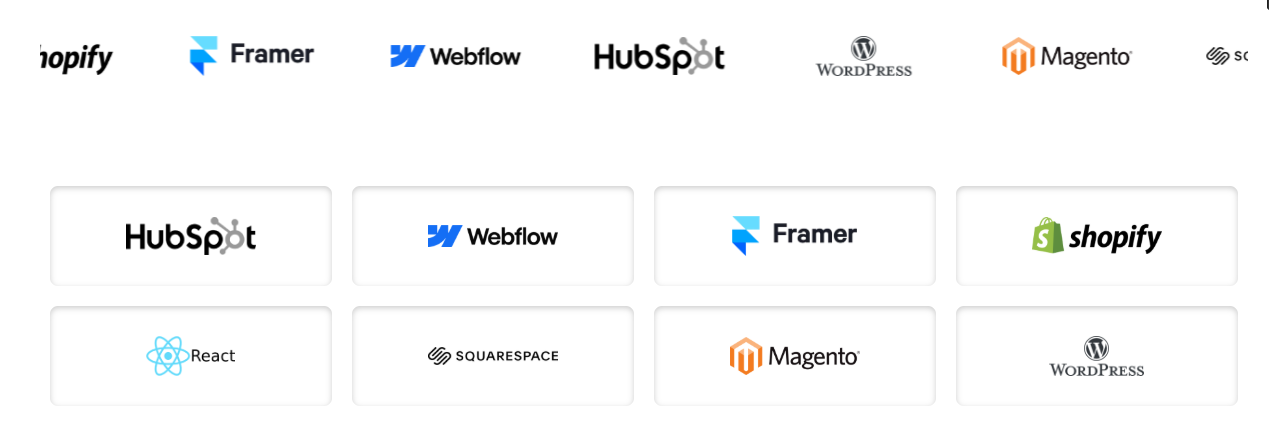
The Swiper Logo Slider module allows you to showcase client, partner, or brand logos in either a grid layout or an interactive slider, offering full control over layout, styling, and responsiveness.
Features
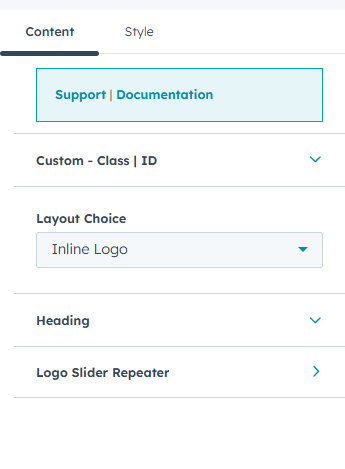
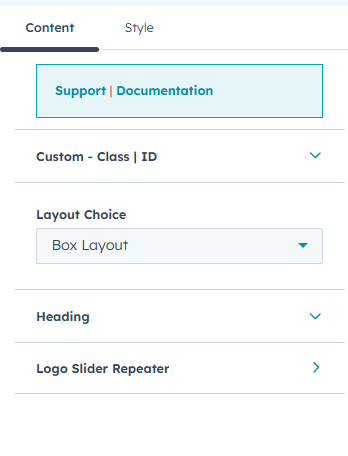
- Custom Class and ID fields for advanced styling and targeting
- Heading: Use the Title/Content Rich Text Field for Headings and Descriptions
- Layout options including inline logo layout and box-based logo layout
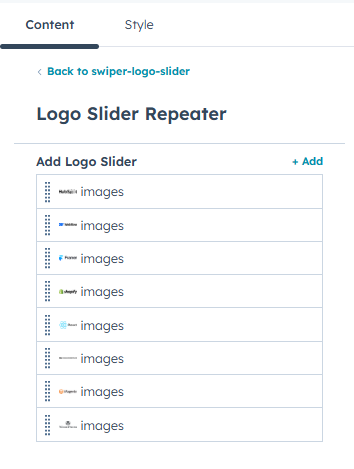
- Logo management using a repeater field for easy image updates
- Background customization options, including background color and background image
- Section spacing controls for top, bottom, left, and right padding on desktop, tablet, and mobile
- Container type options including page-centered and full-width layouts
Slider Controls
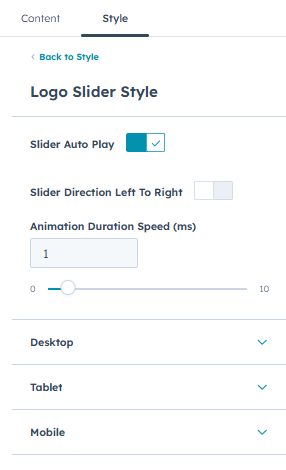
- Toggle option to enable or disable the slider
- Autoplay enable/disable option
- Adjustable autoplay duration (speed in milliseconds)
- Slider direction control (left to right)
- Responsive settings for slides to show and slides to scroll on desktop, tablet, and mobile
-
When autoplay is disabled:
- Option to enable or disable dots and arrows for desktop, tablet, and mobile
- Custom styling options for dots and navigation arrows
-
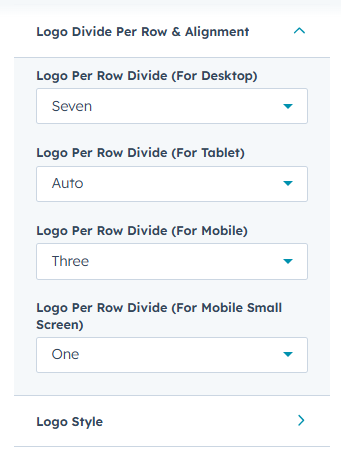
When the sliderstrong> is disabled:strong>
- Control the number of logos per row with alignment options for desktop, tablet, mobile, and small screens
Logo Styling Options
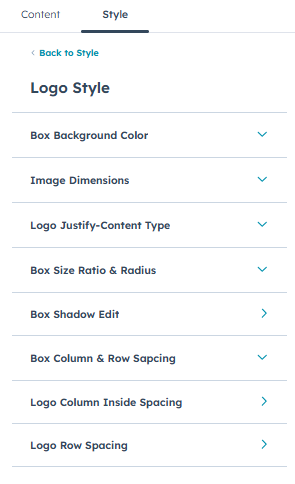
Layout-based styling controls, including:
- Box background color
- Logo image dimensions
- Logo alignment and justify-content options
- Box size ratio selection
- Box border radius
- Box shadow enable/disable
- Column and row spacing between logo boxes
- Inner padding for logo columns
- Row spacing between logos
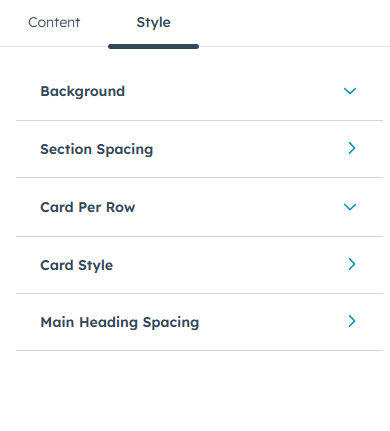
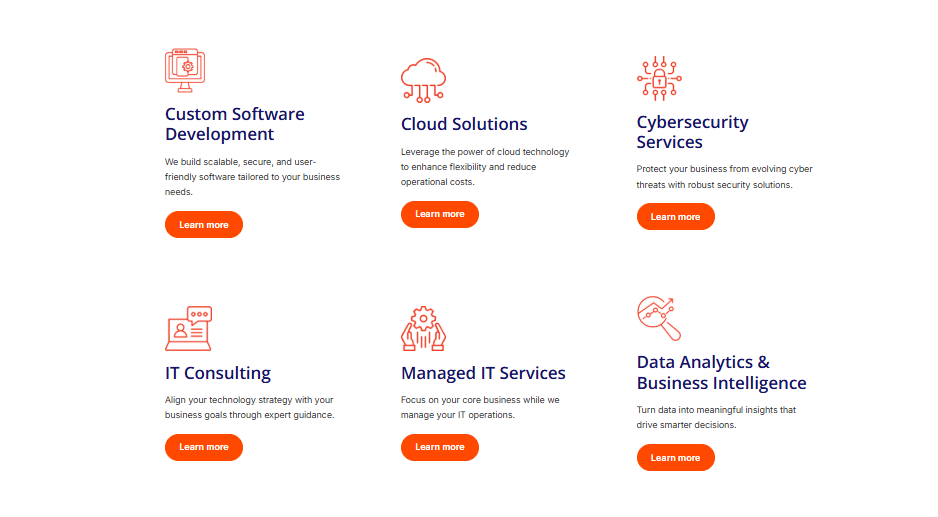
Icon Content Card
The Icon Content Card module displays boxed cards with a custom icon, title, and supporting text. It is ideal for showcasing services, features, or key information in a clear and visually structured format.
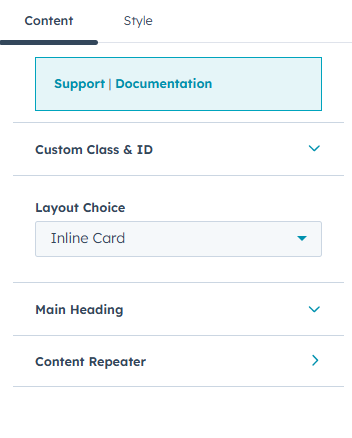
Features
- Custom Class and ID fields for advanced styling and targeting
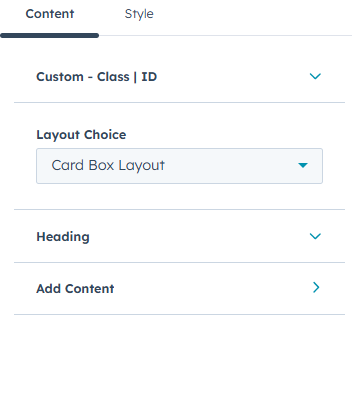
- Layout options including inline cards and boxed card layouts
- Use the heading Rich Text Field for Headings and description
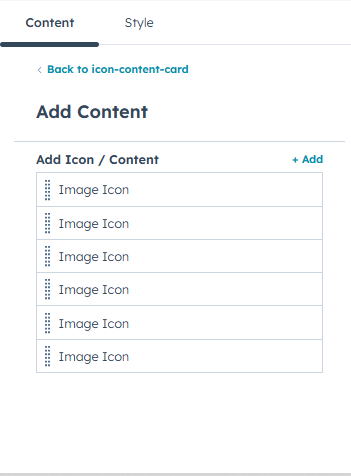
- Icon Content Card repeater for easy content management
-
Icon selection options within the repeater:
- HubSpot icons
- Image uploads
- Custom SVG code
- Rich text support for card content
- Optional button configuration within each card
- Background customization options, including background color and background image
- Section spacing controls for top, bottom, left, and right padding on desktop, tablet, and mobile
Layout-based styling controls include:
- Number of cards per row for desktop, tablet, mobile, and small screens
-
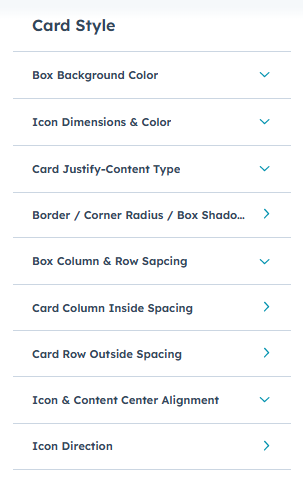
Card styling options, including:
- Box background color
- Icon size and color controls
- Card alignment options (flex-start, center, space-around, flex-end, space-between)
- Border, corner radius, and box shadow customization
- Column and row spacing between cards for desktop, tablet, and mobile
- Inner column spacing within cards for desktop, tablet, and mobile
- Outer row spacing between cards for desktop, tablet, and mobile
- Option to enable or disable center alignment for icons and content
- Icon direction options, including top-left, top-right, center, or none
Counter
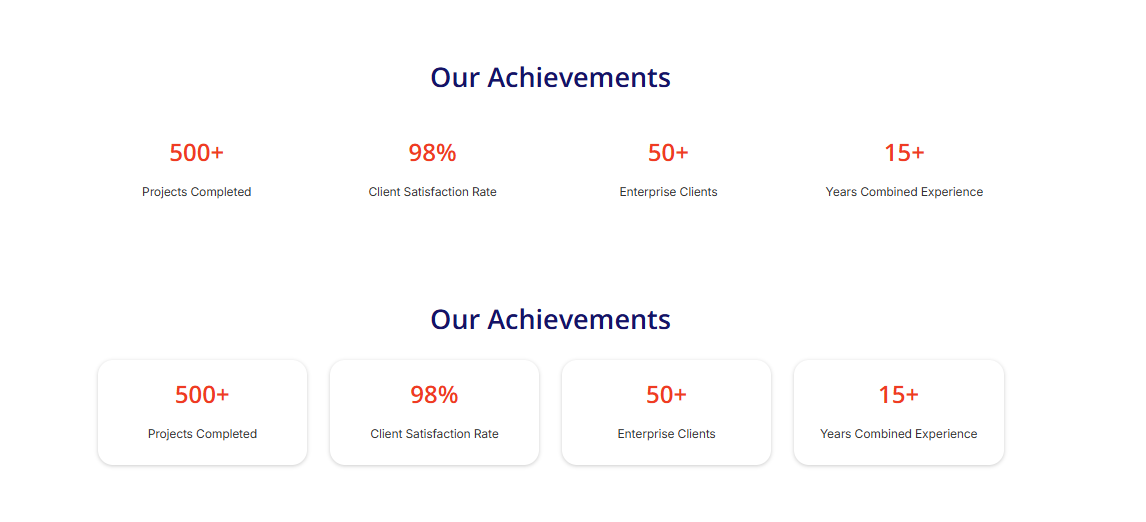
The Counter module displays key statistics with an animated counter effect, making it ideal for highlighting numbers such as achievements, milestones, or performance metrics.
Features
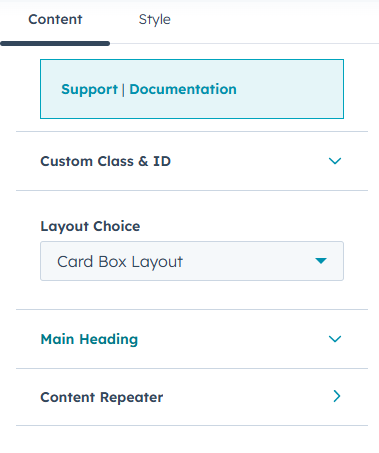
- Custom Class and ID fields for advanced styling and targeting
- Layout options including inline cards and boxed card layouts
- Use the Main Heading Rich Text field for both headings and descriptions.
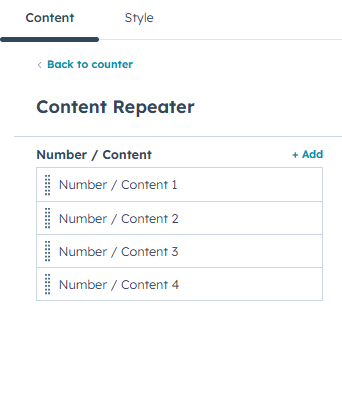
- Icon Content Card repeater for easy content management
-
Number and content repeater with the following options:
- Plus symbol text field
- Number value input
- Sign symbols (e.g. +, K)
- Counter animation speed duration
- Content Rich Text field
- Option to show or hide the last text on a new line
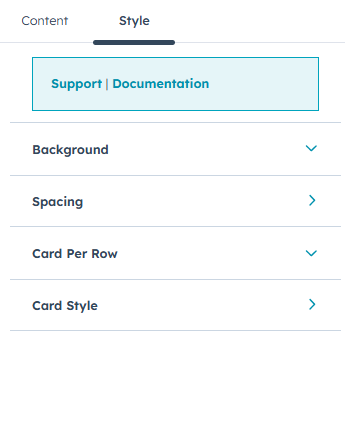
- Background customization options, including background color and background image
- Section spacing controls for top, bottom, left, and right padding on desktop, tablet, and mobile
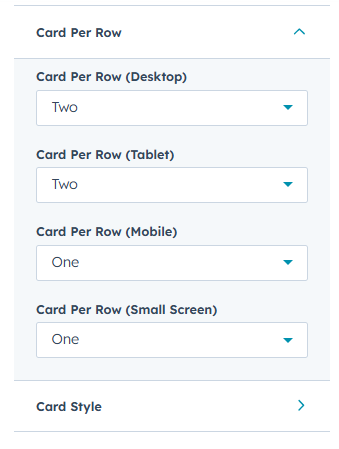
Layout-based styling controls include:
- Cards per row settings for desktop, tablet, mobile, and small screens
-
Card styling options, including:
- Box background color
-
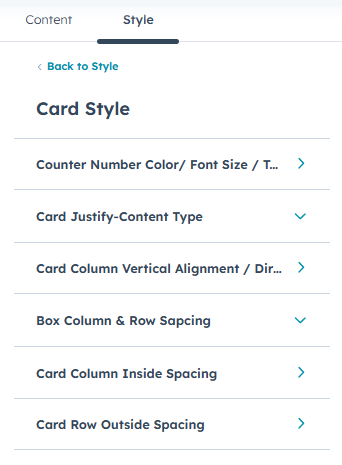
Counter Number Color/ Font Size
- Counter Number Color
- Counter heading tag selection
- Text alignment options
- Optional custom counter number font size (show/hide) with separate settings for desktop and mobile
- Card justify-content options (flex-start, center, space-between, flex-end, space-around)
-
Card layout and alignment controls:
- Vertical alignment (normal, flex-start, center, flex-end)
- Flex direction options (row, row-reverse, column, column-reverse)
- Content center spacing for desktop and mobile
-
Border, corner radius, and box shadow customization:
- Border style, width, and color
- Border radius adjustment
- Box shadow enable/disable
- Column and row spacing between cards for desktop, tablet, and mobile
- Inner column spacing within cards for desktop, tablet, and mobile
- Outer row spacing between cards for desktop, tablet, and mobile
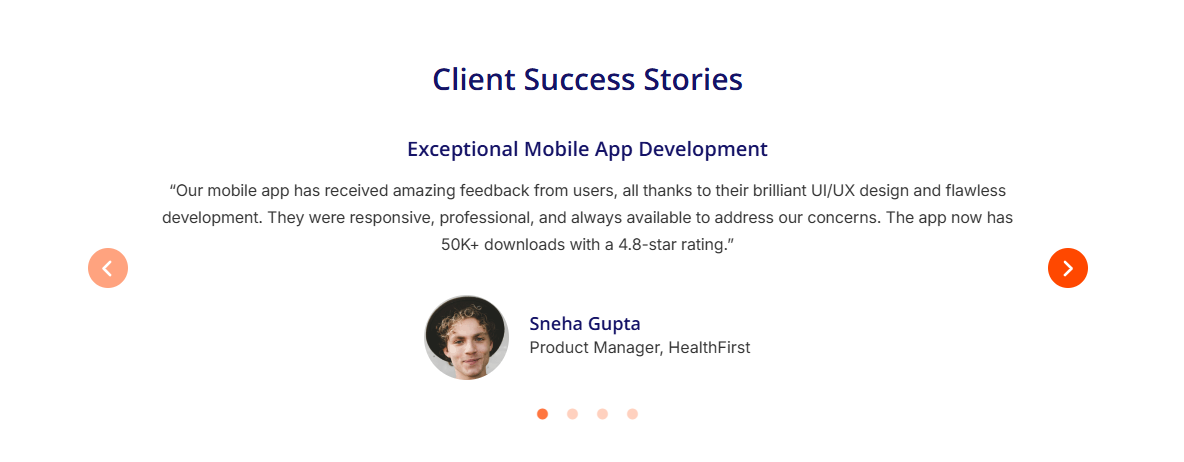
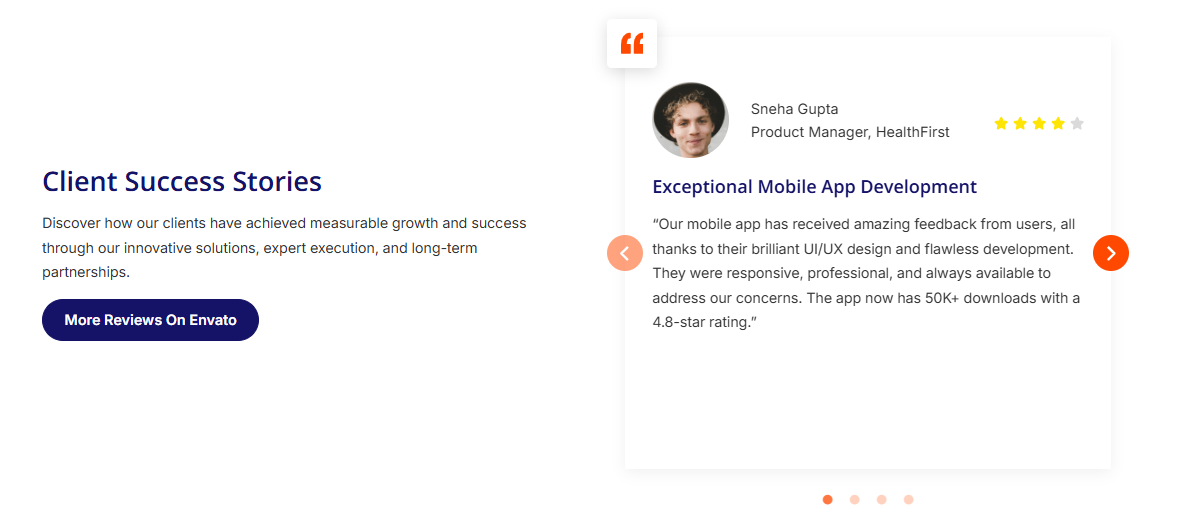
Successful Stories
The Successful Stories module lets you showcase client testimonials in a modern and engaging layout. It helps build trust and credibility by presenting customer reviews, ratings, and success stories, with optional slider functionality for added flexibility.
Features
- Custom Class and ID fields for advanced styling and targeting
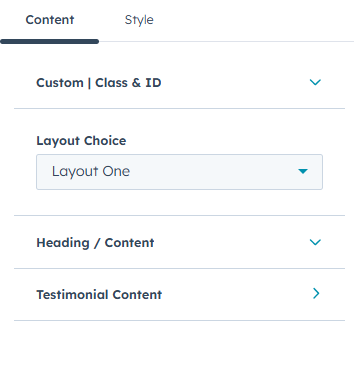
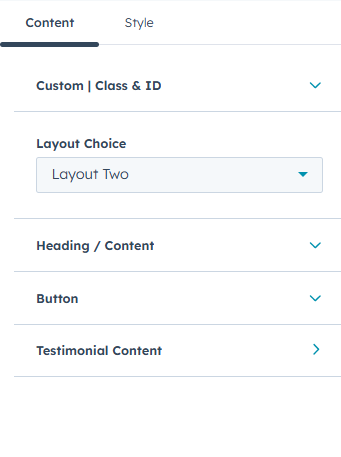
- Layout options including Layout One and Layout Two
- Use the Main Heading Rich Text field for both headings and descriptions.
- Heading and content fields for the main section title
-
Button configuration options, including:
- Button types (Primary, Secondary, Tertiary, Simple)
- Button sizes (Regular, Large, Small)
- Button text and button link
-
Testimonial content management using an inner repeater, including:
- Testimonial content text
-
Client Section
- Client name
- Client role or designation
- Client image
- Star rating reviews
- Background customization options, including background color and background image
- Section spacing controls for top, bottom, left, and right padding on desktop, tablet, and mobile
Layout-based and slider styling controls include:
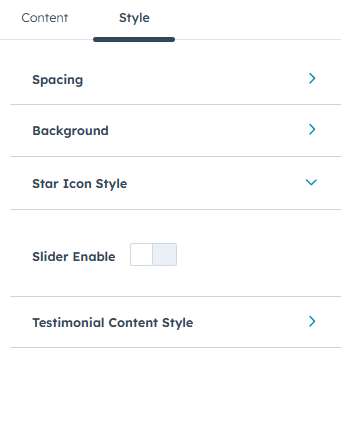
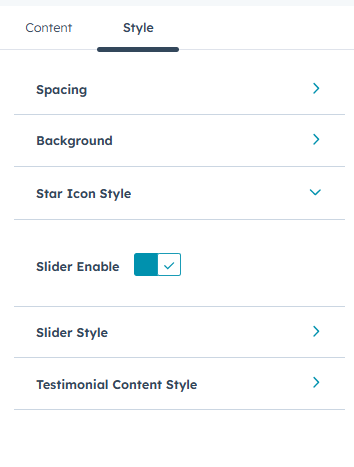
- Star icon color customization
- Toggle option to enable or disable the testimonial slider
-
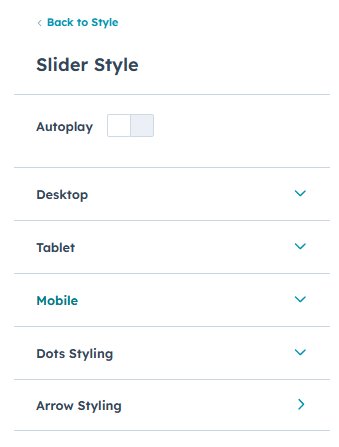
When the slider is enabled:
- Autoplay enable/disable option
- Speed control displayed when autoplay is enabled
-
Responsive slider settings for desktop, tablet, and mobile, including:
- Slides to show
- Slides to scroll
- Dots and arrows enable/disable options
- Custom styling options for dots and navigation arrows
-
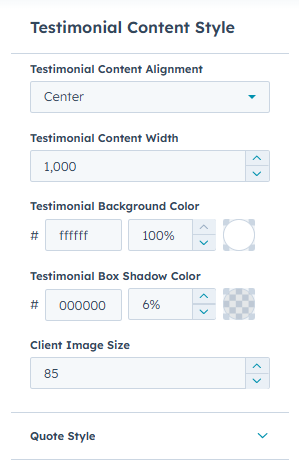
Testimonial content styling options, including:
- Testimonial content alignment(Left , Right , Center)
- Adjustable testimonial content width
- Testimonial background color
- Testimonial box shadow color
- Client image size controls
-
Quote styling options, including:
- Quote color
- Quote background color
- Quote box shadow color
Subscribe Form
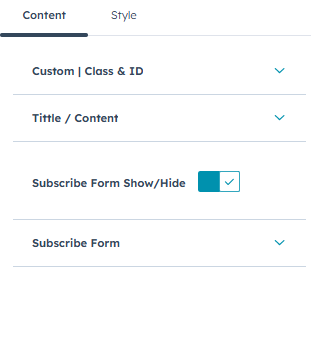
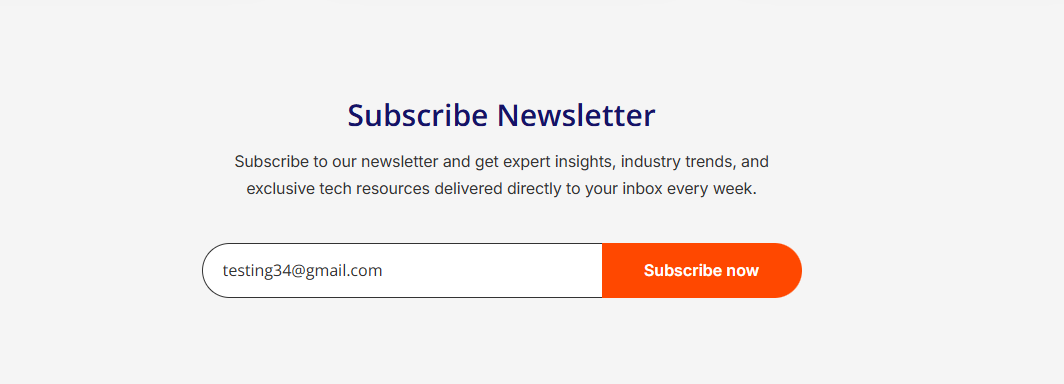
The Subscribe Form module allows visitors to subscribe to your newsletter and receive the latest updates. It provides flexible content, form visibility, and styling options to match your website design.
Features
- Custom Class and ID fields for advanced styling and targeting
- Title and content fields with an option to add custom content
-
Toggle option to show or hide the subscribe form
-
When enabled, the following fields are available:
- Subscribe form selection
- Bottom text content
-
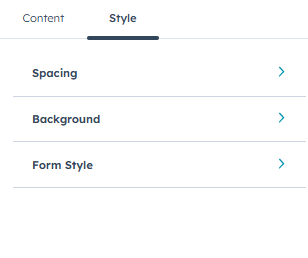
- Background customization options, including background color and background image
- Section spacing controls for top, bottom, left, and right padding on desktop, tablet, and mobile
Styling Options:
-
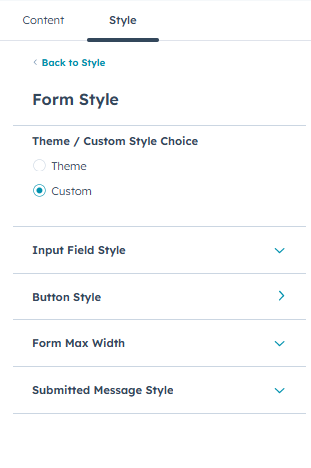
Form styling options with Theme or Custom style selection:
- Theme style – uses default theme styling
- Custom style – enables advanced form customization
-
When Custom style is selected:
-
Input Field Style
- Border radius controls for input fields and buttons
- Input border style, width, and color options
-
Button Style
- Button text color
- Button border style, width, and color
- Button background color
-
Button hover styles, including:
- Hover text color
- Hover border style, width, and color
- Hover background color
- Option to show or hide the submit button in absolute position
-
Submitted Message Style
- Background color customization
-
-
Form width control:
- Adjustable maximum width for the subscribe form
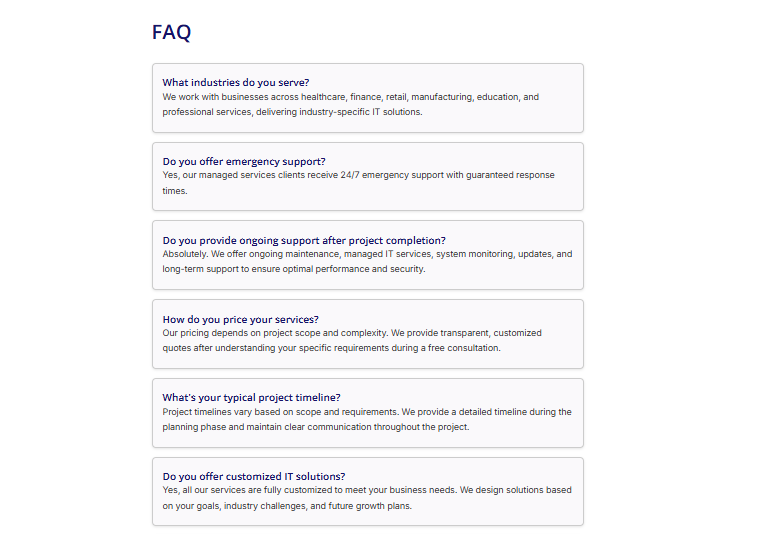
FAQ
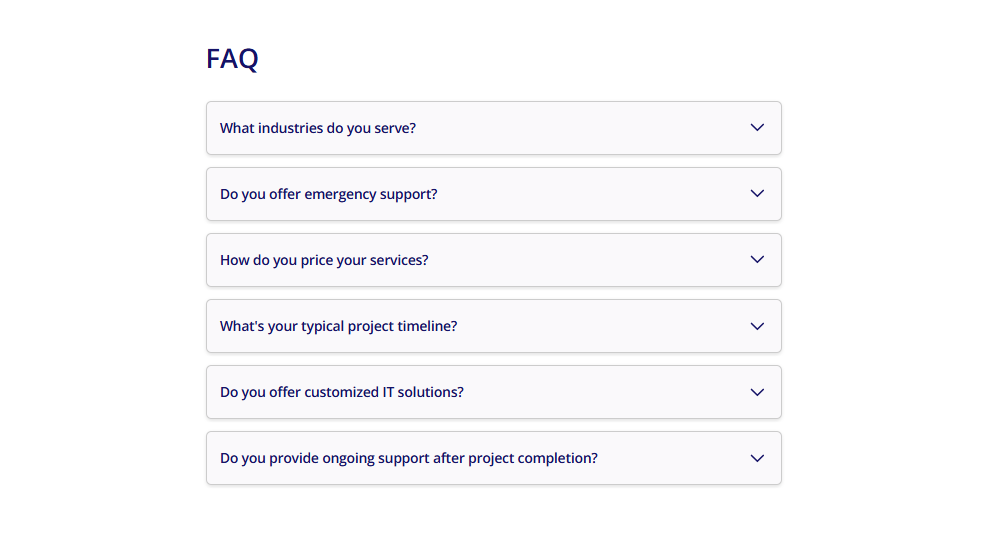
The FAQ (Frequently Asked Questions) module helps organize common questions and answers in a clear, expandable format. It improves user experience by allowing visitors to quickly find relevant information while keeping the page clean and structured.
Features
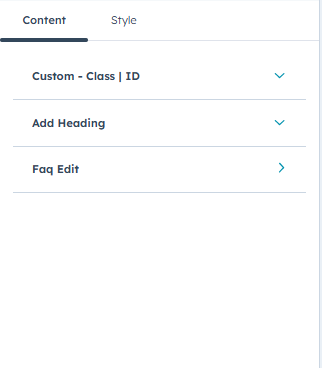
- Custom Class and ID fields for advanced styling and targeting
- Rich text field for adding a section heading
-
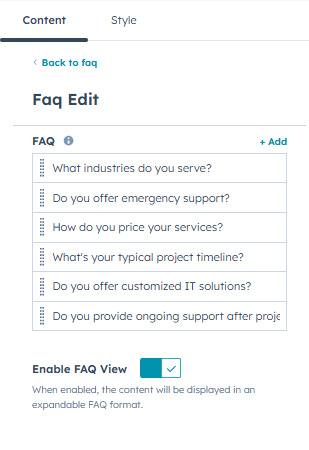
FAQ management using a repeater, including:
- Question (rich text)
- Answer (rich text)
- Toggle option to enable FAQ view
- When enabled, FAQs are displayed in an expandable accordion format
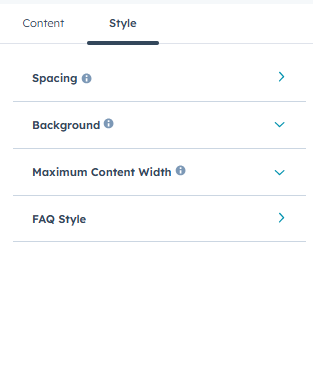
- Section spacing controls for top, bottom, left, and right padding on desktop, tablet, and mobile
- Background customization options, including background color and background image
-
Maximum content width controls:
- Toggle to show or hide max-width settings
-
When enabled, options include:
- Custom max-width for the FAQ container
- Adjustable left and right padding
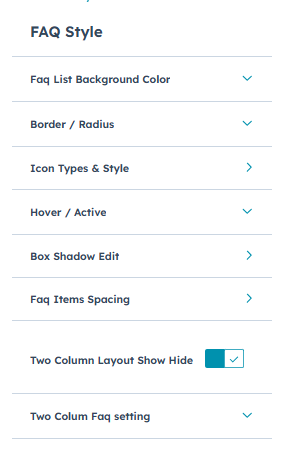
FAQ Style Options
-
FAQ list background customization:
- Background color
-
Border and radius settings:
- Border style, width, and color
- Active border style, width, and color
- Border radius control
-
Icon types and styling options:
-
Icon type selection, including:
- Plus / Minus
- Arrow Down / Arrow Up
- Arrow Right / Arrow Down
- Plus Circle / Minus Circle
- Caret Down / Caret Up
- Icon size control
- Icon boldness adjustment
- Icon color settings
- Icon hover and active color options
-
Option to show or hide icon background
- When enabled, background color and active color options are available
-
-
Hover and active state styling:
- Background color
- Question text color
-
Box shadow customization:
- Box shadow enable/disable option
-
When enabled:
- Shadow type (inset / outset)
- Horizontal offset (X)
- Vertical offset (Y)
- Blur radius
- Spread radius
- Shadow color
-
- Box shadow enable/disable option
- FAQ item spacing controls for desktop and mobile
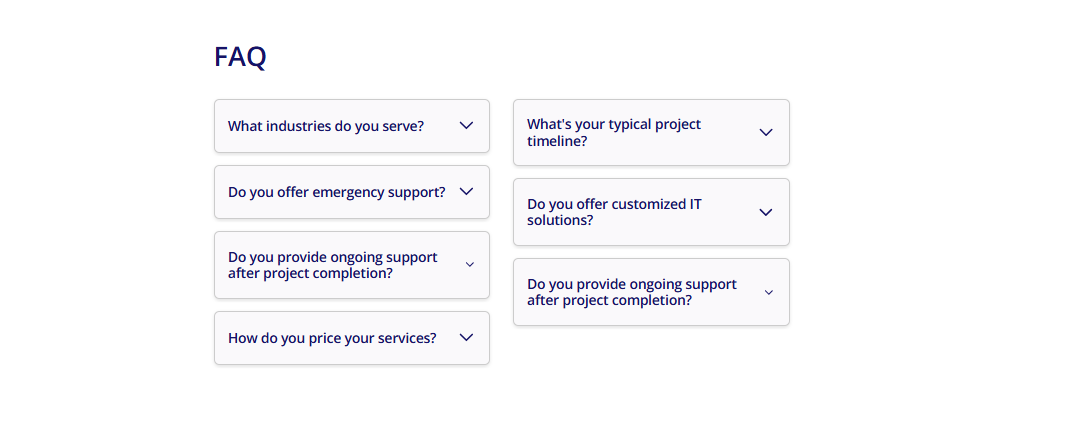
- Two-column layout option:
- Toggle to enable or disable two-column layout
-
When enabled:
- Option to show FAQ items in the left column
- Adjustable center column spacing
Team Cards
The Team Cards module allows you to showcase your team members in a clean and structured card layout. It is ideal for presenting profile images, names, roles, descriptions, and social media links in a visually consistent and professional format.
Features
- Custom Class and ID fields for advanced styling and targeting
- Rich text field for adding a main section heading
-
Team card management using a repeater, including:
- Profile image
- Profile name
- Description or role
-
Social icons repeater with:
- Icon type selection (HubSpot icons or custom SVG icons)
- Icon link configuration
Style Options
- Section spacing controls for top, bottom, left, and right padding on desktop, tablet, and mobile
- Background customization options, including background color and background image
-
Container Style
-
Container stylestrong> options, including page-centered and custom container layouts. When the custom container option is selected, fields for container width and left/right spacing become available.
-
Card-based styling controls include:
- Spacing controls for for desktop, tablet, and mobile
- Cards per row settings for desktop, tablet, and mobile
- Adjustable gap between cards
- Card background color customization
- Card border styling options, including style, width, and color
-
Image Styling
- Image border radius control
- Object position options (top or center)
- Adjustable image height and width
-
Social Icon Styling
- Social icon color
- Social icon hover color
- Social icon size
- Social icon background color
- Social icon hover background color
- Social icon background size
-
Content Alignment
- Card content alignment options: left or center
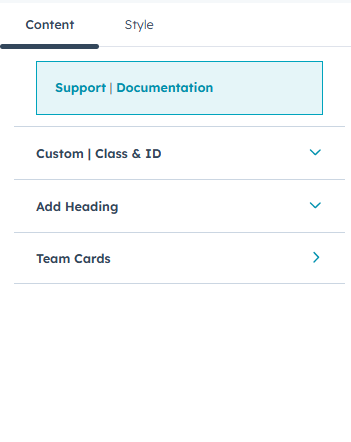
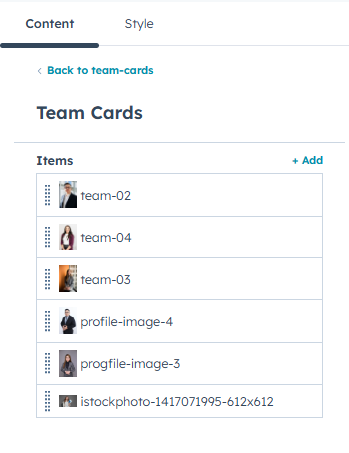
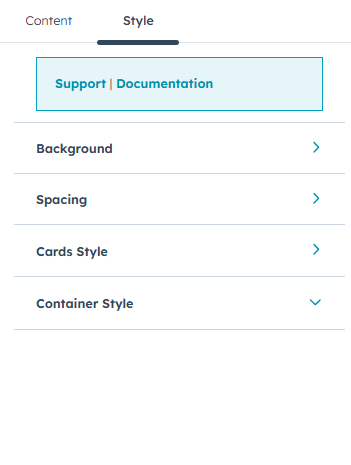
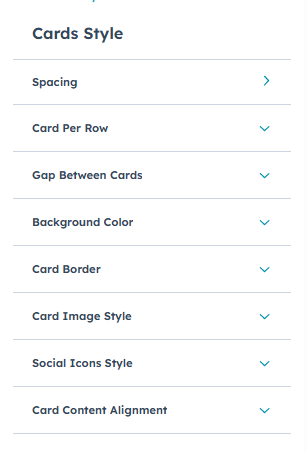
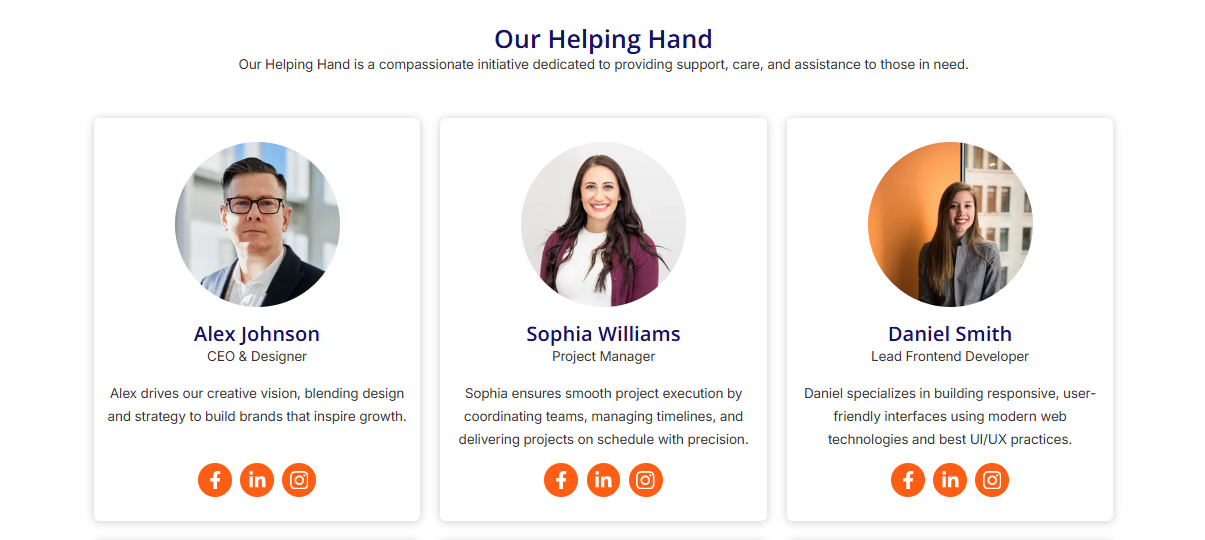

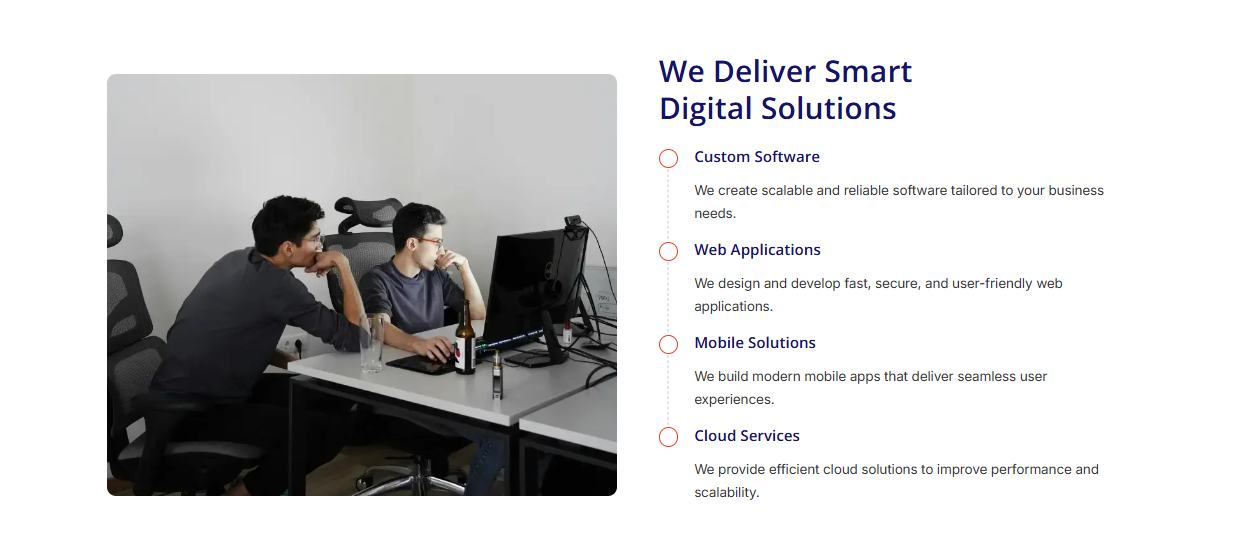
Image With Content List
The Image With Content List module displays an image alongside a structured list of content. It is ideal for highlighting services, features, or key offerings in a flexible two-column layout with a clean, modern design.
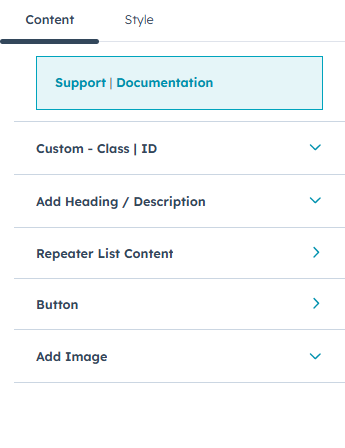
Features
- Custom Class and ID fields for advanced styling and targeting
- Rich text fields for adding a main heading and description
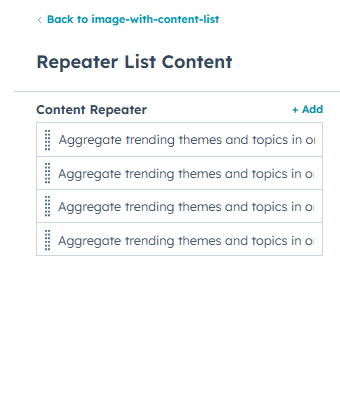
- Content management using a repeater list for adding multiple content items.
-
Button configuration options, including:
- Button types (Primary, Secondary, Tertiary, Simple)
- Button sizes (Regular, Small, Large)
- Button text and link
- Optional button icon using HubSpot icons or custom SVG icons
- Image upload support(option)
Style Options
- Section spacing controls for top, bottom, left, and right padding on desktop, tablet, and mobile
- Background customization options, including background color and background image
- Custom container option with toggle to enable custom container width
-
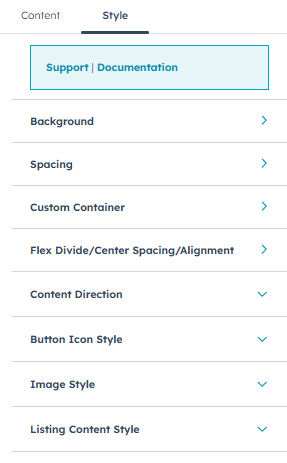
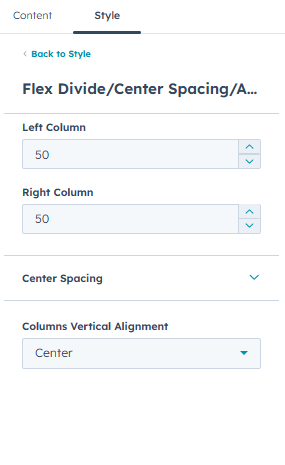
Flexible layout controls, including:
- Left and right column width settings
- Center spacing controls for desktop and mobile
- Vertical column alignment (top, center, bottom)
- Content direction options (Image / Content or Content / Image)
- Button icon styling with adjustable icon size
-
Image styling options, including:
- Image border radius
- Maximum image height
-
Listing content styling options, including:
- Repeater item circle border style, width, and color
- Circle width
- Circle border color
- Circle background color
Horizontal Tabbing
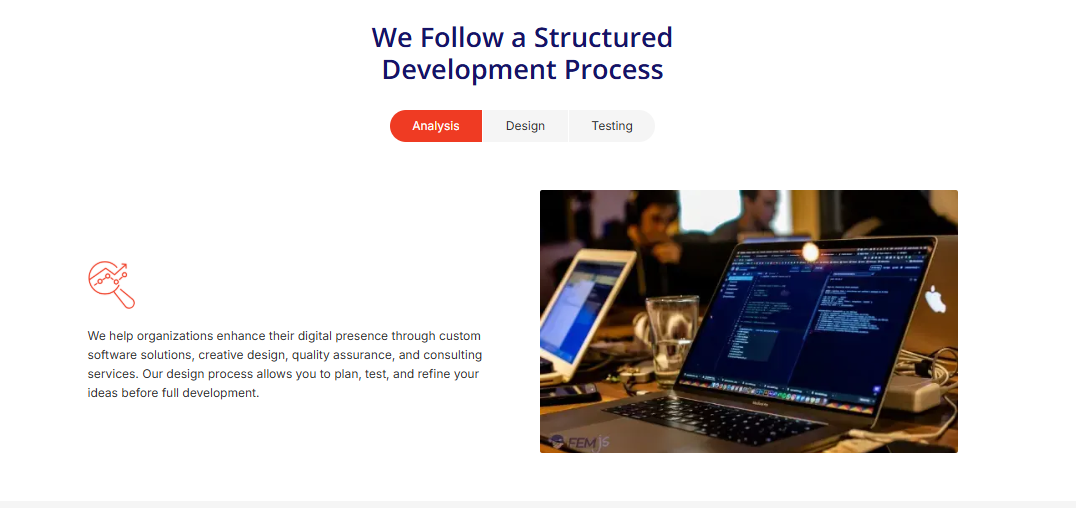
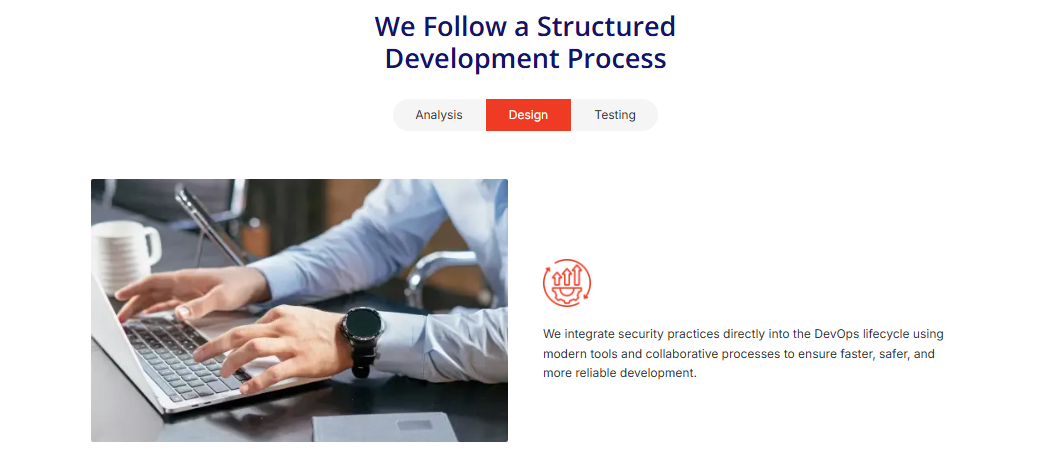
The Horizontal Tabbing module allows you to present content in an interactive tab-based layout. It is ideal for showcasing processes, workflows, features, or related content in a structured and user-friendly way, enabling visitors to switch between sections without page reloads.
Features
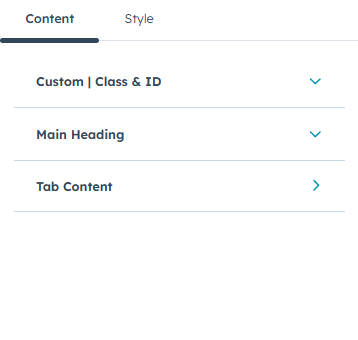
- Custom Class and ID fields for advanced styling and targeting
- Rich text fields for adding a main heading and description
-
Tab content management using a repeater, including:
- Tab name
-
Tab content fields:
- Icon or image display with title
- Media selection options: image, HubSpot icon, or custom SVG code
- Description content for each tab
-
Content layout direction options:
- Content / Image
- Image / Content
Style Options
- Section spacing controls for top, bottom, left, and right padding on desktop, tablet, and mobile
- Background customization options, including background color and background image
-
Maximum content width controls:
- Toggle option to enable or disable max-width settings
- When enabled, options for: Custom max-width and Left and right padding adjustment
-
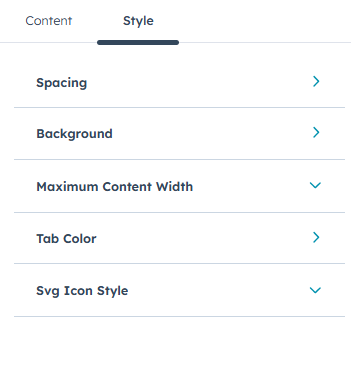
Tab color customization options:
- Default tab text color and background color
- Active tab text color and background color
Social Links
The Social Links module allows you to display social media icons that link to your social profiles or sharing URLs. It provides flexible icon and styling options, making it easy to match your brand design while encouraging users to connect or share content.
Features
-
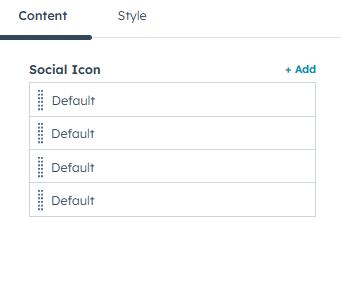
Social icon management using a repeater, with support for:
- HubSpot icons
- Image icons
- Custom SVG code
- Icon link configuration for each social icon
Style Options
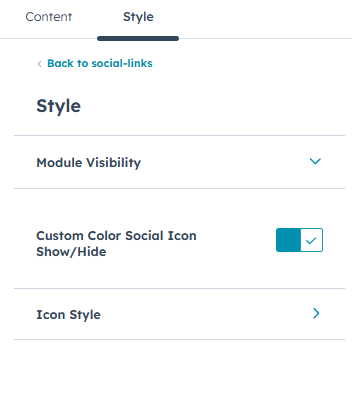
- Module visibility toggle to show or hide the social sharing links
-
Custom social icon color toggle:
- When enabled, icon styling options are available, including:
- Icon color
- Icon background color
- Hover: icon color and Hover background color
- When enabled, icon styling options are available, including:

Contact Form
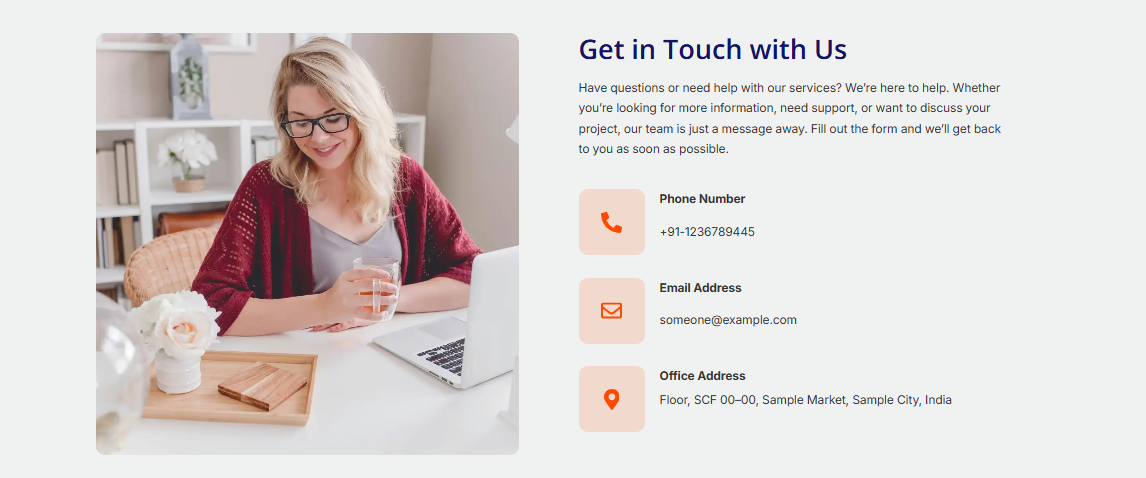
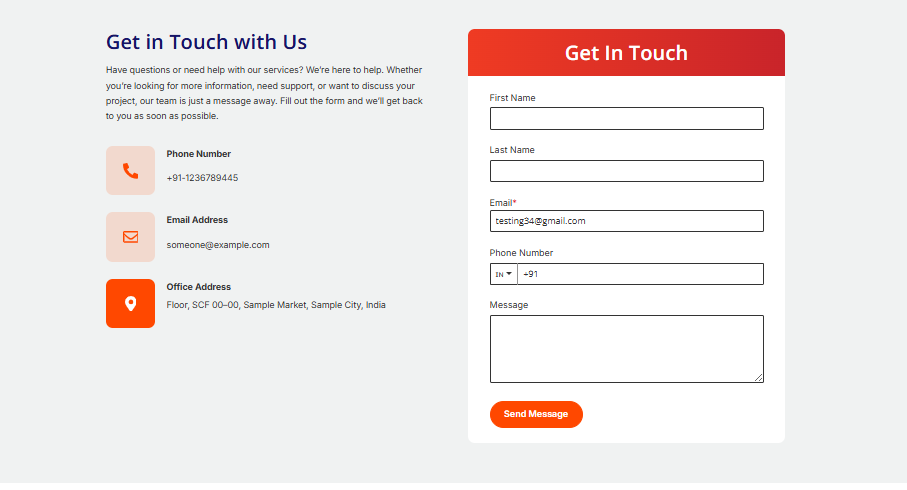
The Contact Form module helps you create a flexible and conversion-focused contact section by combining forms, images, headings, and contact detail in a single layout. With multiple styling and layout controls, this module adapts easily to different design needs across your website.
Features
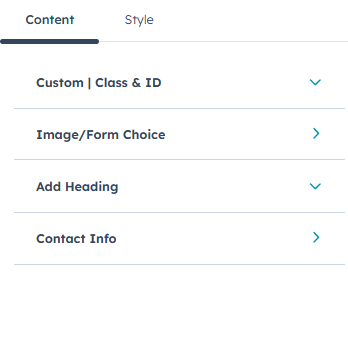
- Custom Class and ID fields for advanced styling and targeting
- Image / Form display choice with an option to show image and form together based on the selected field
- Heading and description fields to introduce the contact section
-
Contact information management using a repeater, supporting:
- HubSpot Icons
- Custom Image Icons
- Heading text
- Clickable links
Style Options
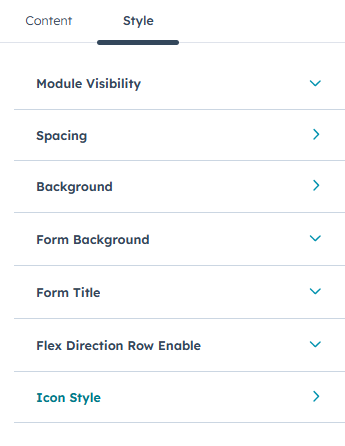
- Module visibility toggle to show or hide the module
- Section spacing controls for top, bottom, left, and right padding on desktop, tablet, and mobile
- Background customization options, including background color and background image
-
When Form is selected, additional options are available:
- Form background color control
- Form title background with gradient and color options
- Flex direction row toggle to control layout orientation
-
Icon style customization options, including:
- Icon color
- Icon background color
- Hover : icon color and background
Google Map
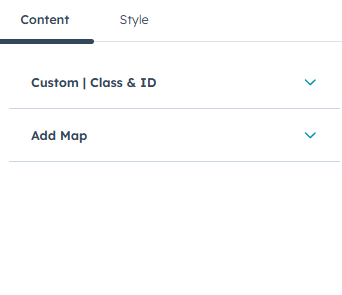
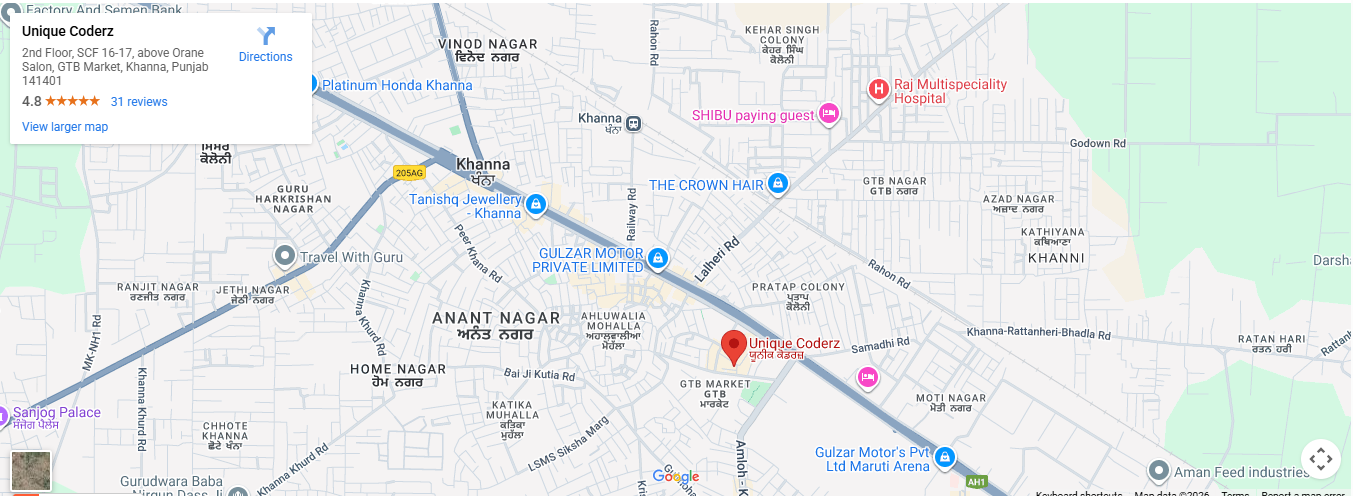
The Google Map module allows you to easily display a location map on your website by adding a Google Maps embed code. It is ideal for showing office locations, business addresses, or service areas in a simple and responsive layout.
Features
- Custom Class and ID fields for advanced styling and targeting
- Rich text field to add and manage the Google Maps embed code
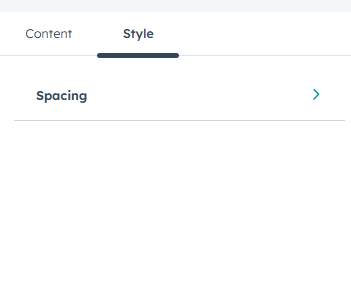
Style Options
- Section spacing controls for top, bottom, left, and right padding on desktop, tablet, and mobile
Button
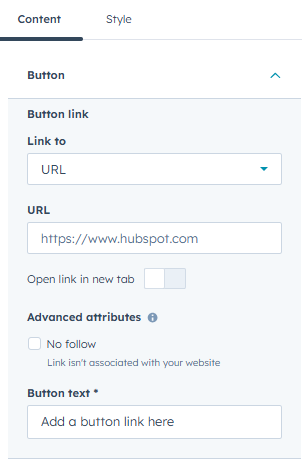
The Button module is used to create clickable button links that guide users to important pages or actions across your website.
Features
- Button settings to add button text and link
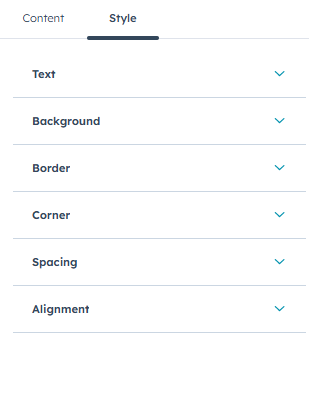
Style Options
- Text styling options using font controls
- Background color customization
- Border styling with style, width, and color options
- Corner radius control for rounded edges
- Spacing options for top, bottom, left, and right padding
- Alignment options to position the button left, center, or right

Blog Banner
The Blog Banner module displays a simple banner for blog pages, allowing you to add a blog title and supporting description for clear context and visual consistency.
Features
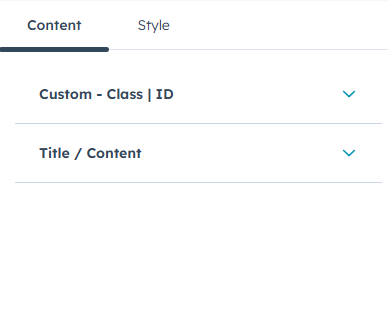
- Custom Class and ID fields for advanced styling and targeting
- Title / Content with a rich text field to add a heading and description
Style Options
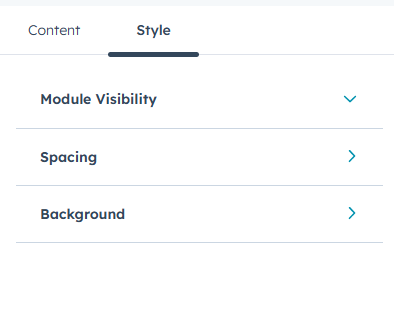
- Module visibility toggle to show or hide the module
- Section spacing controls for top, bottom, left, and right padding on desktop, tablet, and mobile
- Background customization options, including background color and background image

Blog Listing Post
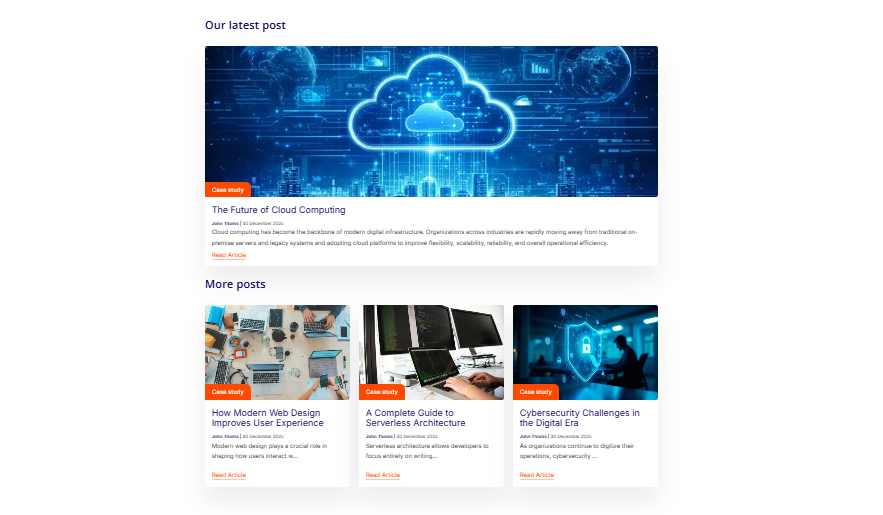
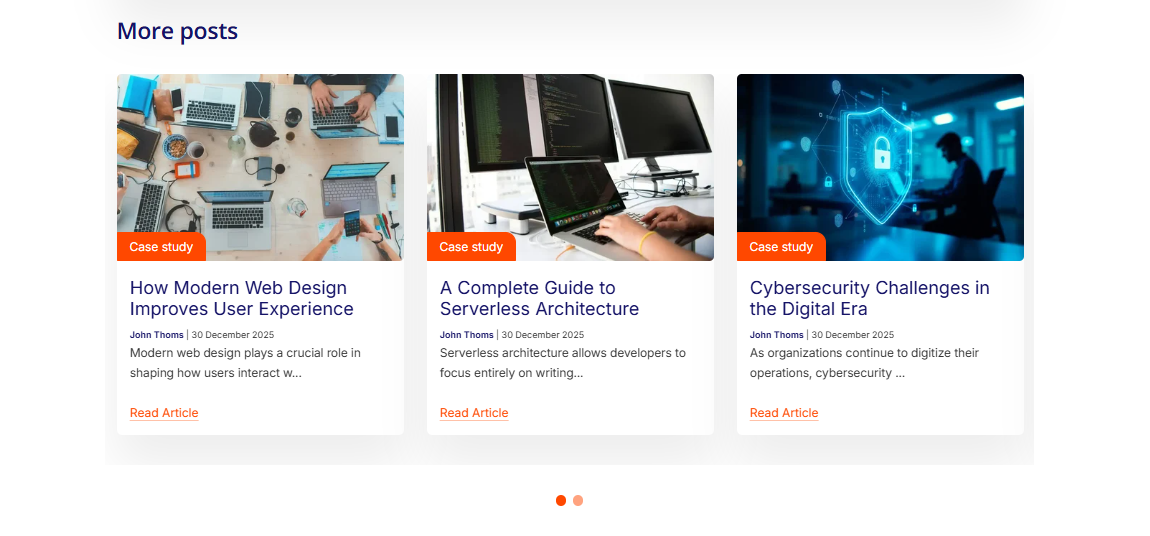
The Blog Listing Post module is designed to display blog posts in a structured and visually appealing card-based layout. It supports showcasing a featured latest post, recent or tag-based posts, and full blog listing pages with flexible display, content, and styling controls.
Features
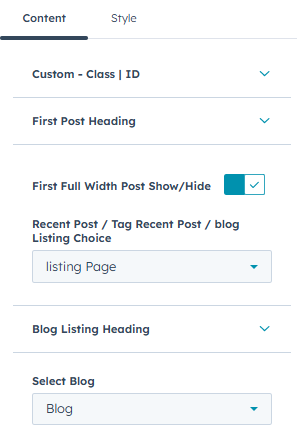
- Custom Class and ID fields for advanced styling and targeting
- First Post Heading option using a rich text field to add a custom heading
- First full-width post show/hide toggle to highlight the latest blog post
-
Blog content source selection with options for:
- Tag-related posts
- Recent blog posts
- Blog listing page posts
- Blog listing heading using a rich text field
- Blog selection field to choose which blog’s posts are displayed
-
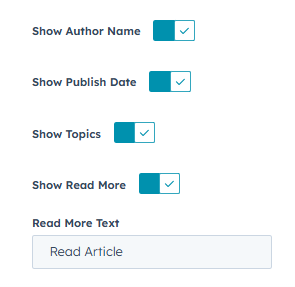
Show/Hide toggle options for:
- Author name
- Publish date
- Topics
- Read More link (with custom Read More text field when enabled)
Style Options
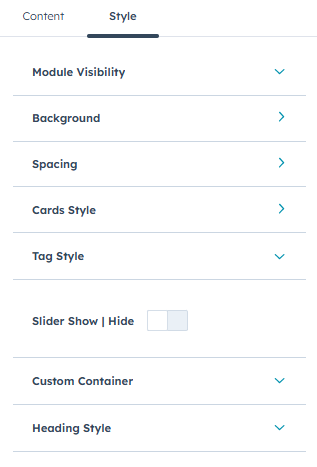
- Module visibility toggle to show or hide the module
- Section spacing controls for top, bottom, left, and right padding on desktop, tablet, and mobile
- Background customization options, including background color and background image
-
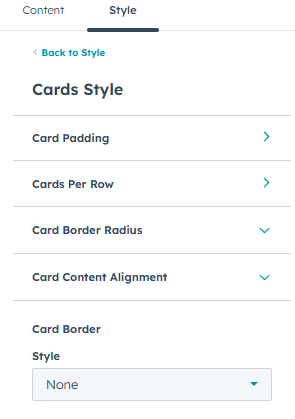
Card styling controls, including:
- Cards per row and gap controls with separate settings for desktop, tablet, and mobile layouts
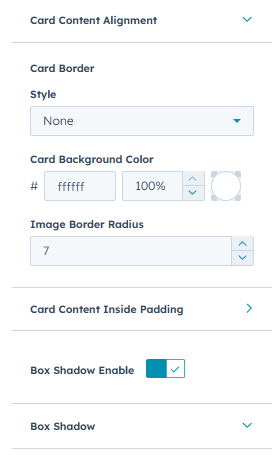
- Card border radius
- Card content alignment (left, center, right, justify)
- Card border style, width, and color
- Card background color
- Image border radius
- Card content inner padding for desktop and mobile
- Box shadow toggle with controls for X offset, Y offset, blur radius, spread radius, and color
-
Tag styling options, including:
- Tag text color
- Tag background color
- Tag border color
- Top-right border radius for tags
-
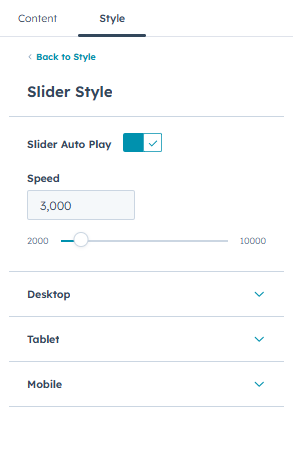
Slider show/hide toggle with additional slider options when enabled:
- Autoplay enable/disable with autoplay speed control
- Dots and arrows toggle
- Slides to show and slides to scroll settings for desktop, tablet, and mobile
- Dot style and arrow style customization
- Heading style settings with options to control maximum width and bottom margin of the heading
- Number of posts setting using a number field to control how many blog posts are displayed in the listing
Blog Subscribe Form
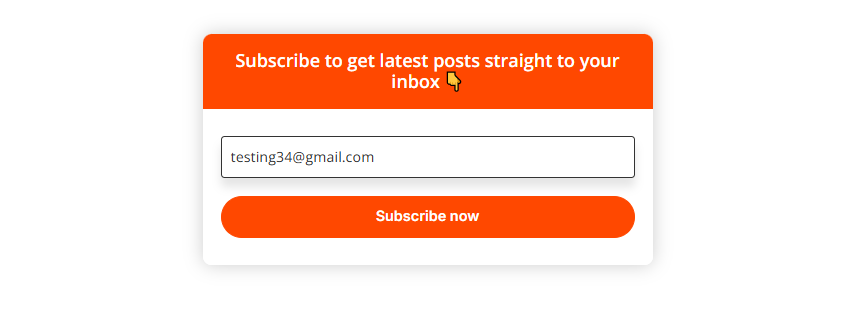
The Blog Subscribe Module is used to display a subscription section that encourages users to sign up for blog updates or newsletters. It combines a heading with a subscription form and provides styling options to match the design of your blog or website.
Features
- Custom Class and ID fields for advanced styling and targeting
- Heading and content management using a rich text field for adding the section title and description
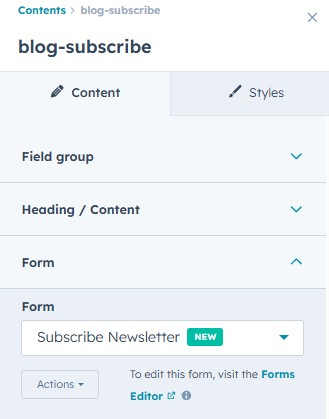
- Form selection option to choose and display a HubSpot form
Style Options
- Background styling with gradient color support
-
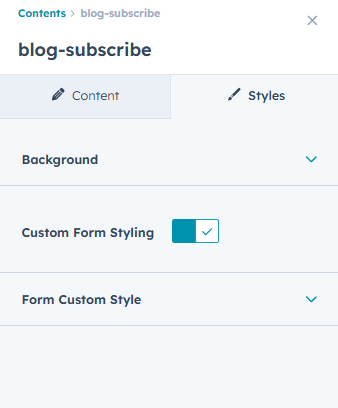
Custom form styling toggle to enable or disable advanced form styles
- When custom styling is enabled, the following options are available:
- Form title text color
- Form title background gradient
- Outer border radius
- Form box shadow color
- Form background color
- Input field background color
- Input field border radius
- When custom styling is enabled, the following options are available:
Blog Tag Post
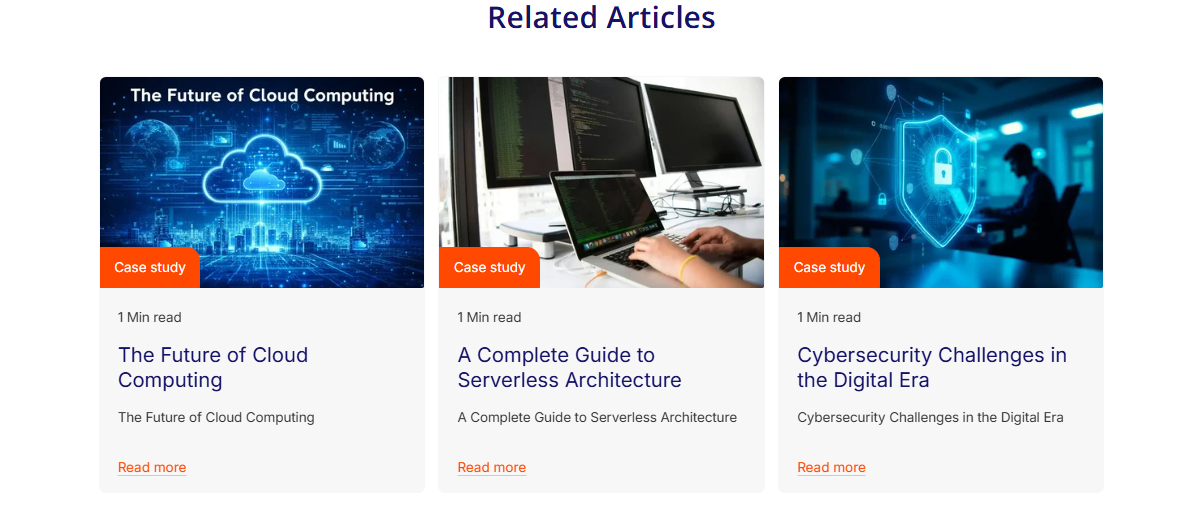
The Blog Tag Post module displays blog posts based on selected tags in a clean and consistent layout, allowing control over visible post details and card styling.
Features
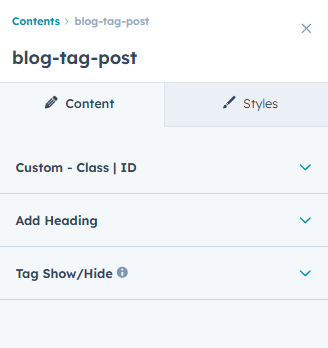
- Custom Class and ID fields for advanced styling and targeting
- Heading management using a rich text field to add a custom title
-
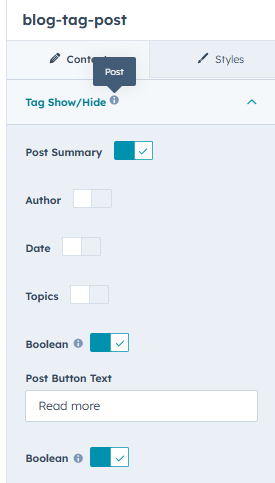
Post display controls with toggle options for:
- Post summary
- Author name
- Publish date
- Topics
- Read More button show/hide, with custom button text
- Post read time show/hide, with custom text
- Number of posts to display
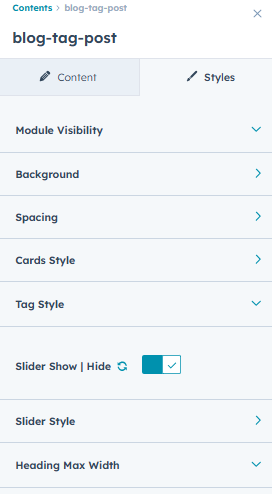
Style Options
- Module visibility toggle to show or hide the module
- Section spacing controls for top, bottom, left, and right padding on desktop, tablet, and mobile
- Background customization options, including background color and background image
-
Card styling controls, including:
- Cards per row and gap controls with separate settings for desktop, tablet, and mobile layouts
- Card border radius
- Card content alignment (left, center, right, justify)
- Card border style, width, and color
- Card background color
- Image border radius
- Card content inner padding for desktop and mobile
- Box shadow toggle with controls for X offset, Y offset, blur radius, spread radius, and color
-
Tag styling options, including:
- Tag text color
- Tag background color
- Tag border color
- Top-right border radius for tags
-
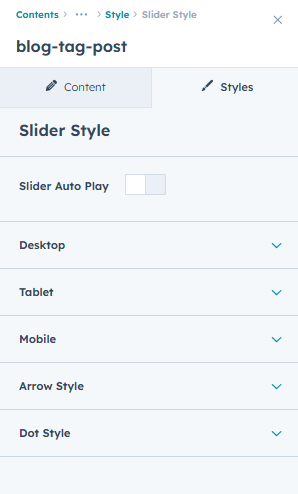
Slider show/hide toggle with additional slider options when enabled:
- Autoplay enable/disable with autoplay speed control
- Dots and arrows toggle
- Slides to show and slides to scroll settings for desktop, tablet, and mobile
- Dot style and arrow style customization
- Heading max-width option to set a custom maximum width for the heading area
Logo With Link
The Logo With Link module allows you to display a logo with an associated link and short description.
Features
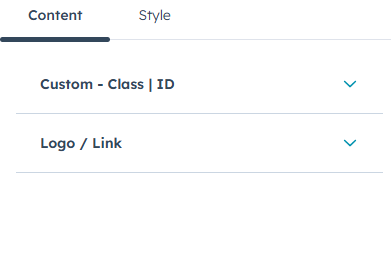
- Custom Class and ID fields for advanced styling and targeting
- Logo image with link option for making the logo clickable
- Rich text field for adding logo description or supporting content
Style Options
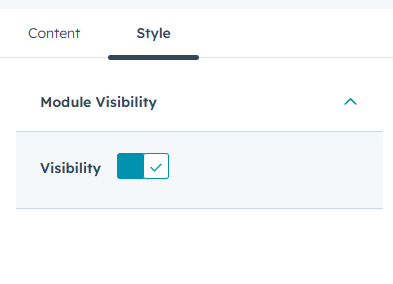
- Module visibility toggle to show or hide the module

Navigation Menu
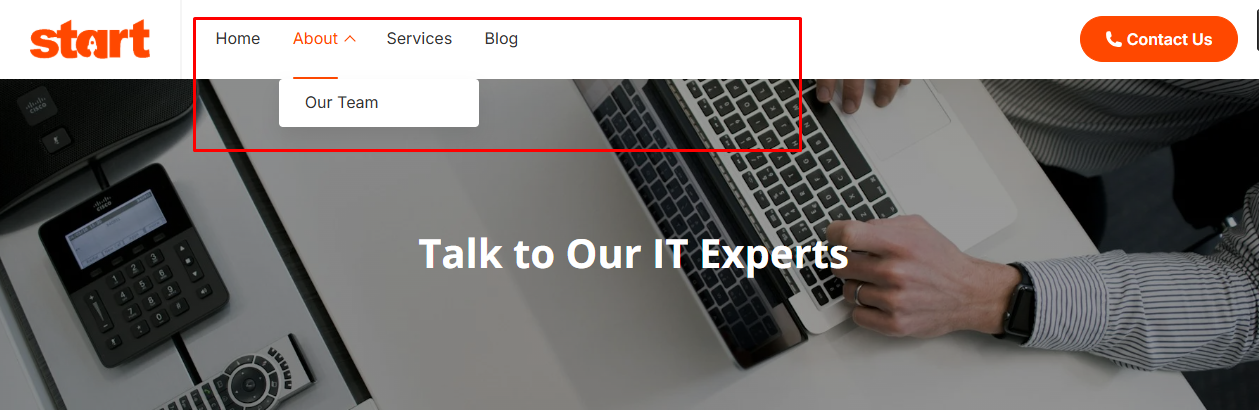
The Navigation Menu module is used to display the primary header navigation of your website. It helps organize pages and sections into a clear, user-friendly menu with support for dropdown levels.
Features
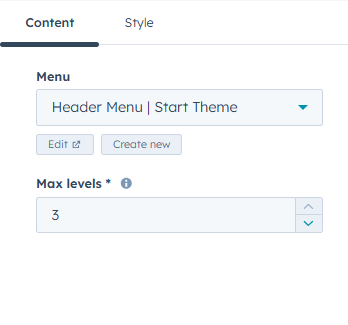
- Menu selection field to create and choose the menu you want to display
- Max levels option to control the number of dropdown menu levels shown
Blog Pagination
The Pagination Blog module is used to navigate between multiple blog pages, making it easier for visitors to browse older and newer posts in an organized way.
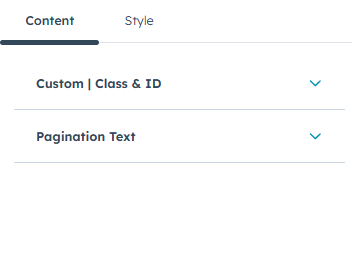
Features
- Custom Class and ID fields for advanced styling and targeting
- Pagination text options to customize Previous and Next button labels
Style Options
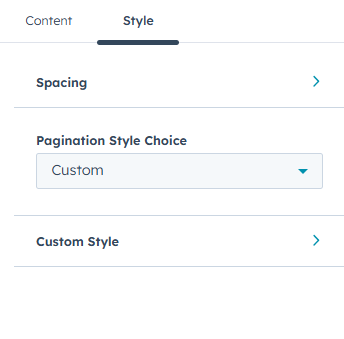
- Spacing controls for top, bottom, left, and right padding on desktop, tablet, and mobile
- Pagination style choice with Theme or Custom options
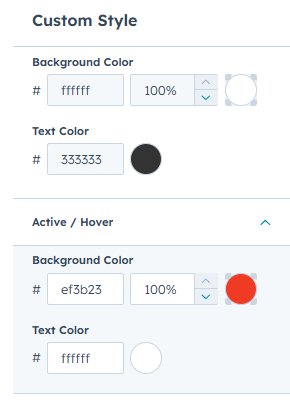
- When Custom is selected, additional styling options are available:
- Background color
- Text color
-
Active/ Hover
- Background color
- Color color

Social Links
The Social Links module allows you to display social media icons that link to your social profiles or sharing URLs. It provides flexible icon and styling options, making it easy to match your brand design while encouraging users to connect or share content.
Features
-
Social icon management using a repeater, with support for:
- HubSpot icons
- Image icons
- Custom SVG code
- Icon link configuration for each social icon
Style Options
- Module visibility toggle to show or hide the social sharing links
-
Custom social icon color toggle:
- When enabled, icon styling options are available, including:
- Icon color
- Icon background color
- Hover: icon color and Hover background color
- When enabled, icon styling options are available, including:
Custom Buttons
The Custom Buttons module allows you to add multiple buttons with flexible styles and links, making it easy to create call-to-action groups across your pages.
Features
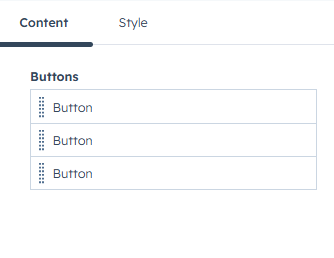
- Buttons repeater to add multiple buttons
- Button text and custom button class support
- Button style selection: Primary, Secondary, Tertiary, Simple, and Custom
- Button link configuration
-
Button icon toggle to enable or disable icons
- Icon type selection: SVG or Font Awesome (HubSpot Icon)
- Icon position control with left or right alignment
Style Options
- Spacing controls for top, bottom, left, and right padding on desktop, tablet, and mobile
- Alignment options to position the button left, center, or right
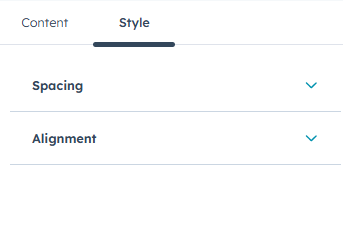

Footer Menu
The Footer Menu module is used to display navigation links in the website footer, helping visitors quickly access important pages and resources.
Features
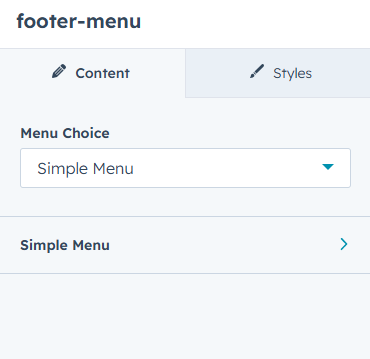
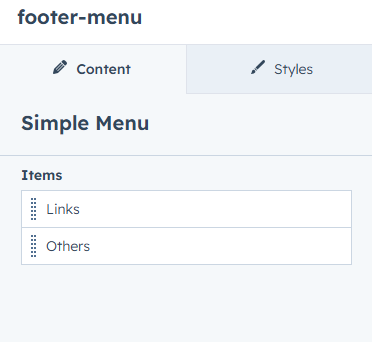
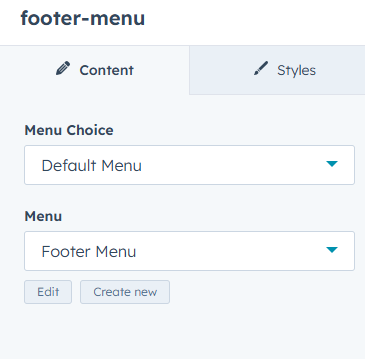
- Menu type selection with options for Simple Menu or Default Menu
- Menu fields are displayed dynamically based on the selected menu type
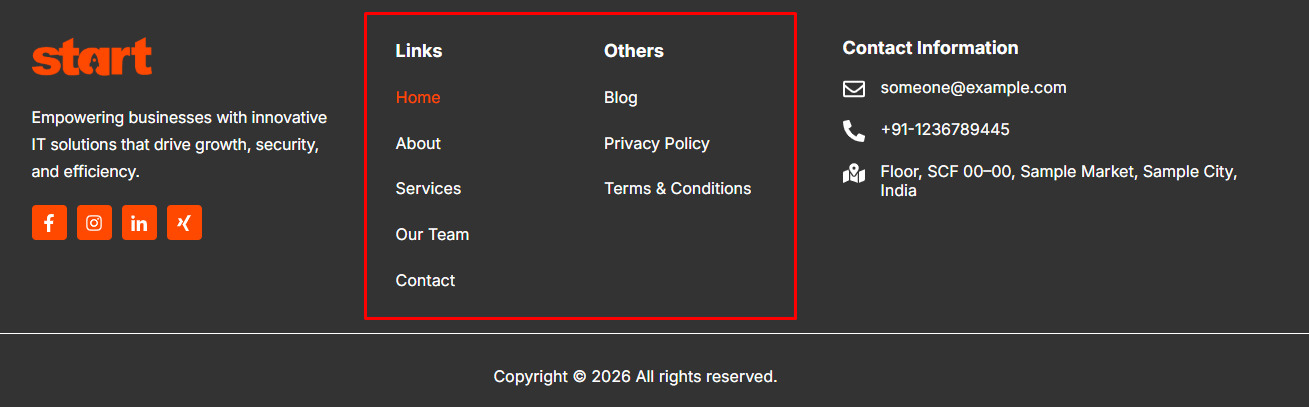
Icon & Text Grid
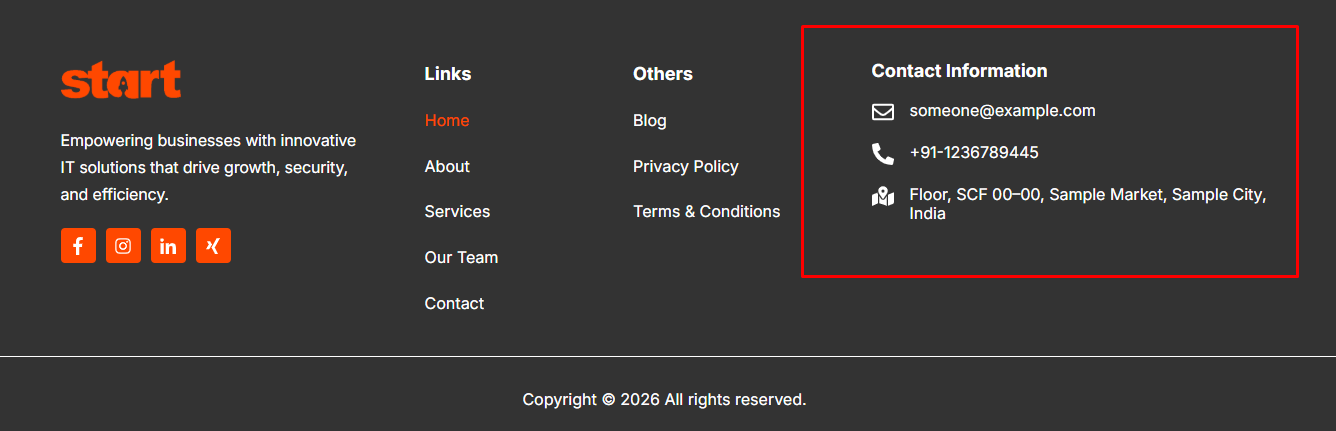
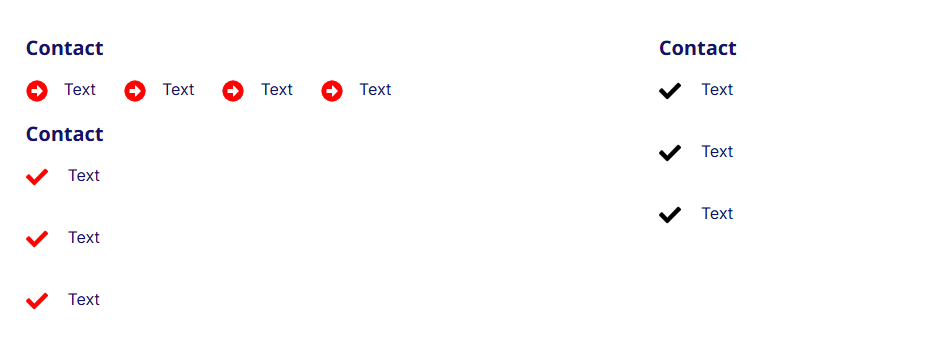
The Icon & Text Grid module is used to display key information with icons and text in a clean, grid-based layout. It is ideal for showing footer contact details such as phone numbers, email addresses, locations, or other quick info blocks in a visually consistent way.
Features
- Custom Class and ID fields for advanced styling and targeting
-
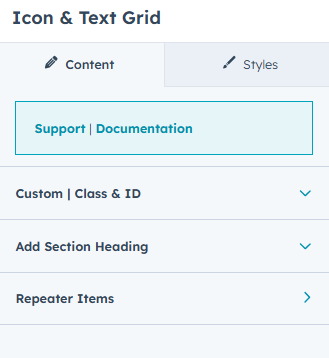
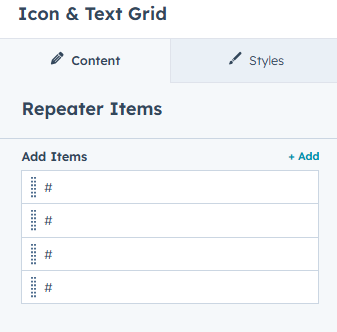
Repeater-based items to manage multiple entries, including:
- Link field for clickable items
- Icon or image choice (Image, HubSpot Icon, or custom SVG code). Based on the selected option, the relevant fields are displayed
- Content text field for labels
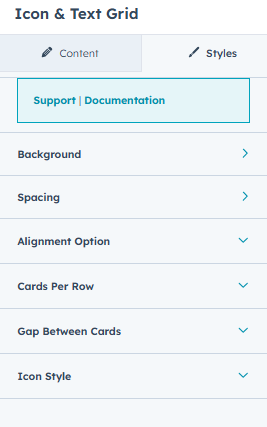
Style Options
- Background customization options, including background color and background image
- Section spacing controls for top, bottom, left, and right padding on desktop, tablet, and mobile
- Icon Text Grid Alignment control for items (start, center, end)
- Icon Text Grid Per row settings for desktop, tablet, and mobile
- Icon Text Grid Gap control between for desktop, tablet, and mobile
-
Icon styling options, including:
- Icon background size
- Icon background color
- Icon size
- SVG icon color
- Icon and text flex direction (column layout) enable/disable toggle
Scroll To Div
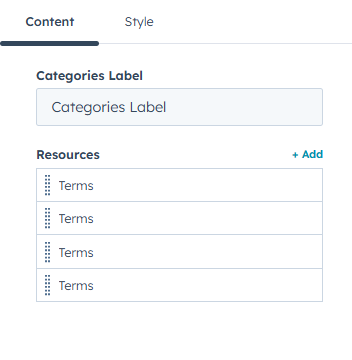
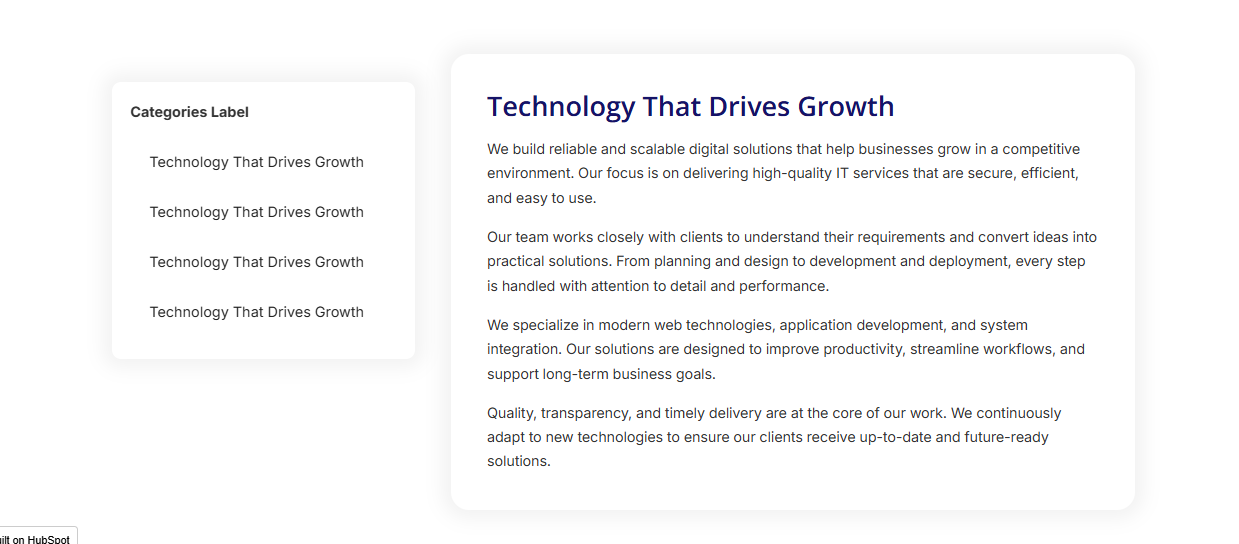
The Scroll To Div module is designed for documentation pages to help users quickly navigate between different sections on the same page. It improves usability by organizing content into categories and allowing smooth scrolling to related sections, with support for images and videos.
Features
- Category label text field to display section headings or navigation labels
-
Resources management using a repeater with the following fields:
- Navigation text
- Category assignment for grouping related items
- Description field for supporting content
-
Media type choice (Image or Video)
- When Image is selected, image field and an option to enable/disable 100% image width are shown
- When Video is selected, video options are available, including embed URL or embed code
Notes : Automatic slider behavior when more than one image/video is added to a resource item
Style Option
- Module visibility toggle to show or hide Scroll To Div